
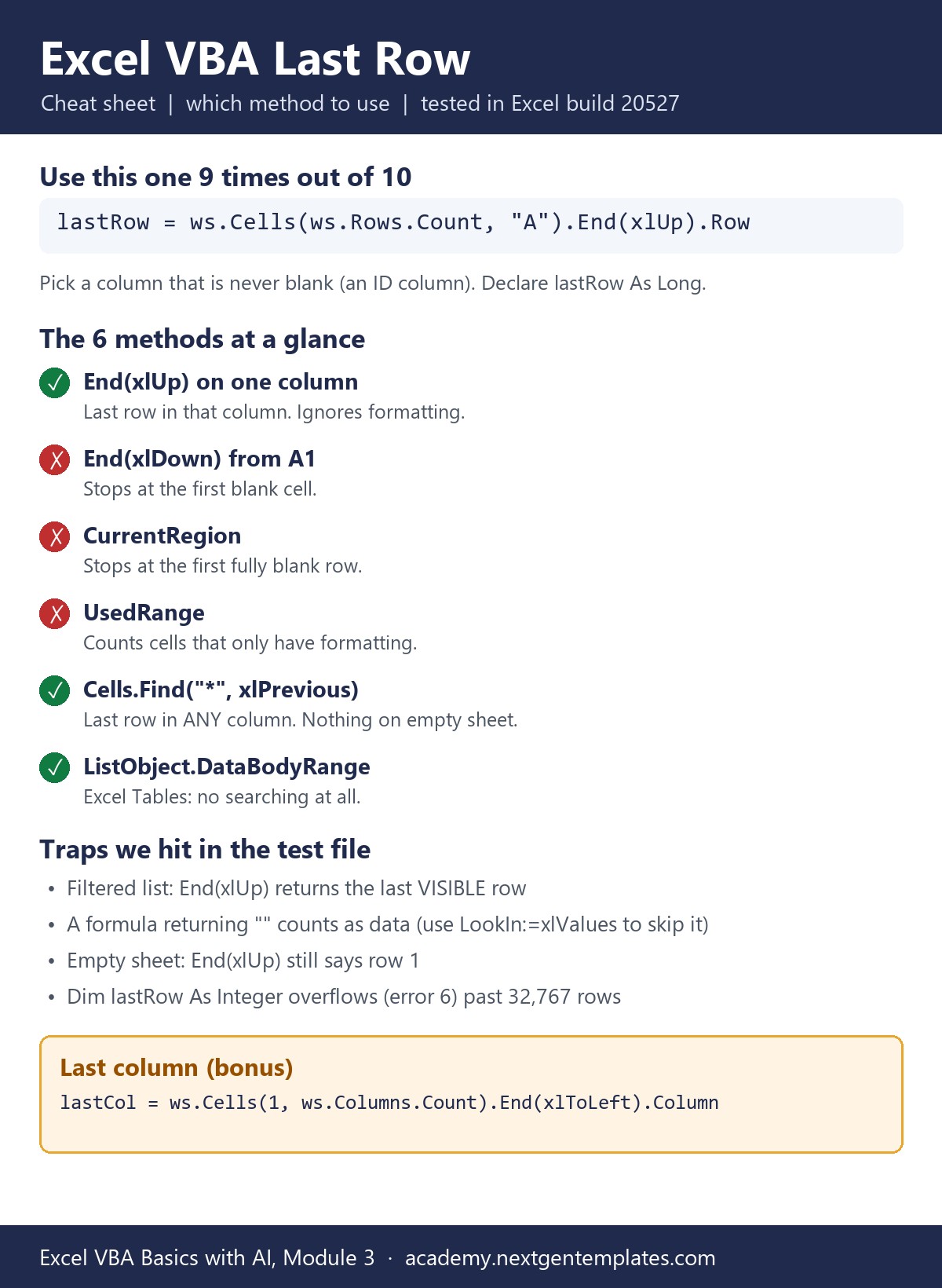
To find the last row in Excel VBA, use lastRow = ws.Cells(ws.Rows.Count, "A").End(xlUp).Row. It starts at the very bottom of column A, jumps up to the first cell with data and returns that row number. Use a column that is never blank, such as an ID column, and declare lastRow As Long. When you need the last row in any column, use Cells.Find("*", SearchDirection:=xlPrevious). When your data is an Excel Table, read the Table’s DataBodyRange and skip the searching altogether.
This tutorial comes from Module 3 of my Excel VBA Basics with AI course, the lesson “Find the last row and column the right way”. For this post I built new sample data for a made-up US caterer, Blue Ridge Catering Co., with 30 event orders and four traps hidden in the sheet on purpose. I ran every method below as real VBA in Microsoft 365 Excel for Windows (build 20527, November 2026), so every row number you see came out of Excel.
⬇️ Download the Free Practice File (ZIP)
Practice workbook + solution .xlsm + LastRow_Methods.bas · no sign-up
Why the last row matters in almost every macro
Nearly every useful macro needs to know where the data stops. You loop from row 2 to the last row, you paste new records into the first empty row, or you size a range for a report. If the number is wrong by even one row, the macro either skips real data or writes over it. That is why the course gives this one idea its own lesson before any loops.
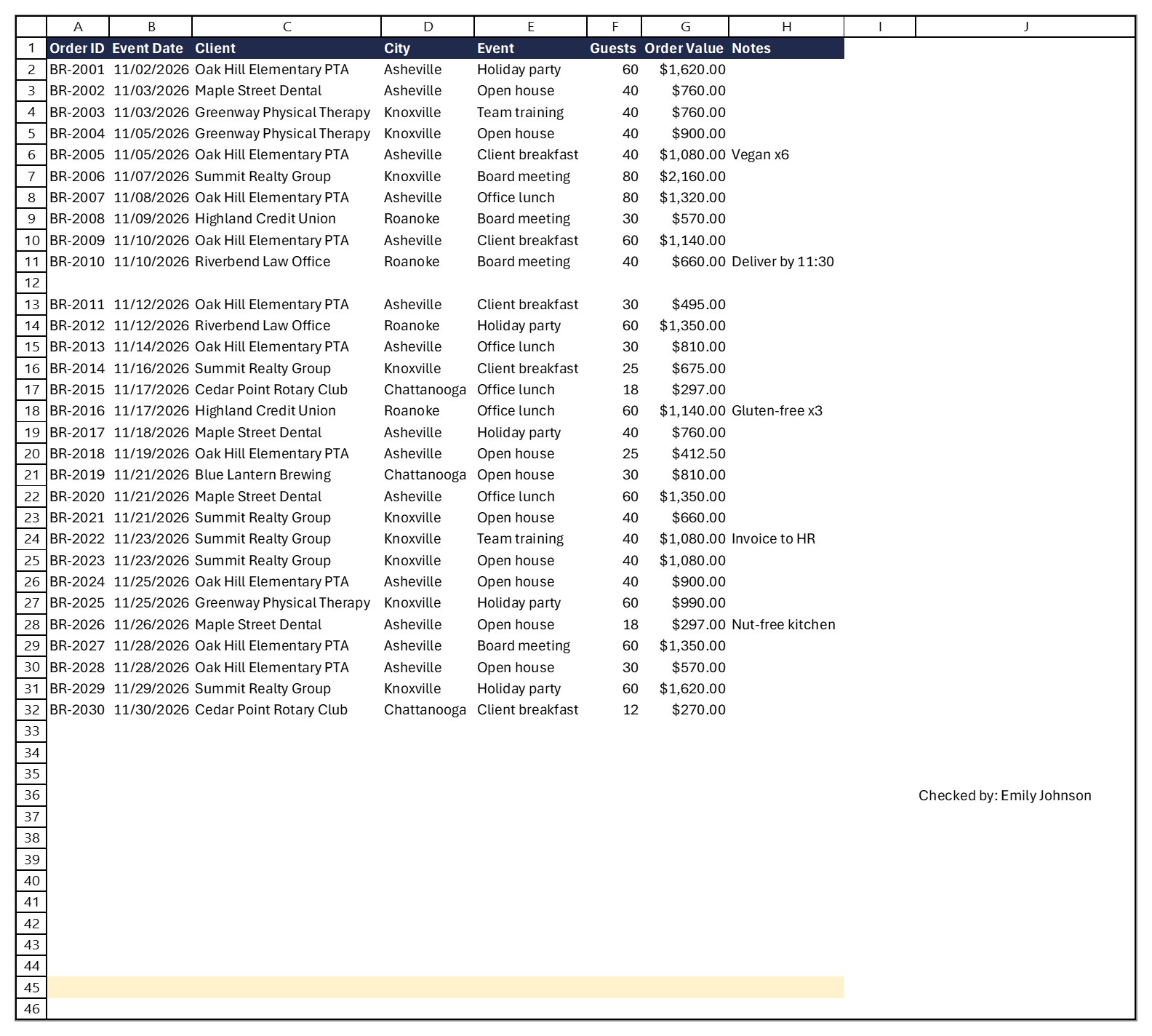
The Orders sheet in the practice file is built to break the weak methods. Row 12 is empty because an order was deleted. Notes in column H are filled only on some rows. Someone typed “Checked by: Emily Johnson” in J36, below the data. And row 45 has a yellow fill but no values, which happens all the time in real files.
The 6 ways to find the last row, tested
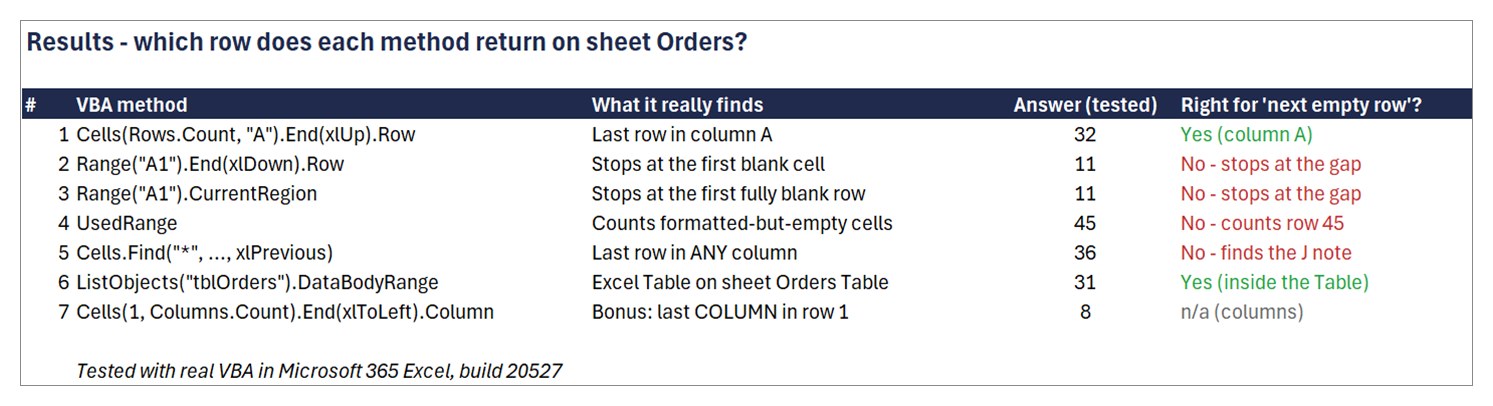
Here is what each method returned on that sheet. The real last order is in row 32.
| # | VBA method | Returned | Safe for the next empty row? |
|---|---|---|---|
| 1 | Cells(Rows.Count, "A").End(xlUp).Row |
32 | Yes |
| 2 | Range("A1").End(xlDown).Row |
11 | No, stops at the blank row |
| 3 | Range("A1").CurrentRegion |
11 | No, stops at the blank row |
| 4 | UsedRange |
45 | No, counts the formatted row |
| 5 | Cells.Find("*", ..., xlPrevious) |
36 | Only if you want any column |
| 6 | ListObjects("tblOrders").DataBodyRange |
31 (30 rows + header) | Yes, for Tables |
Method 1: End(xlUp), the one to use by default
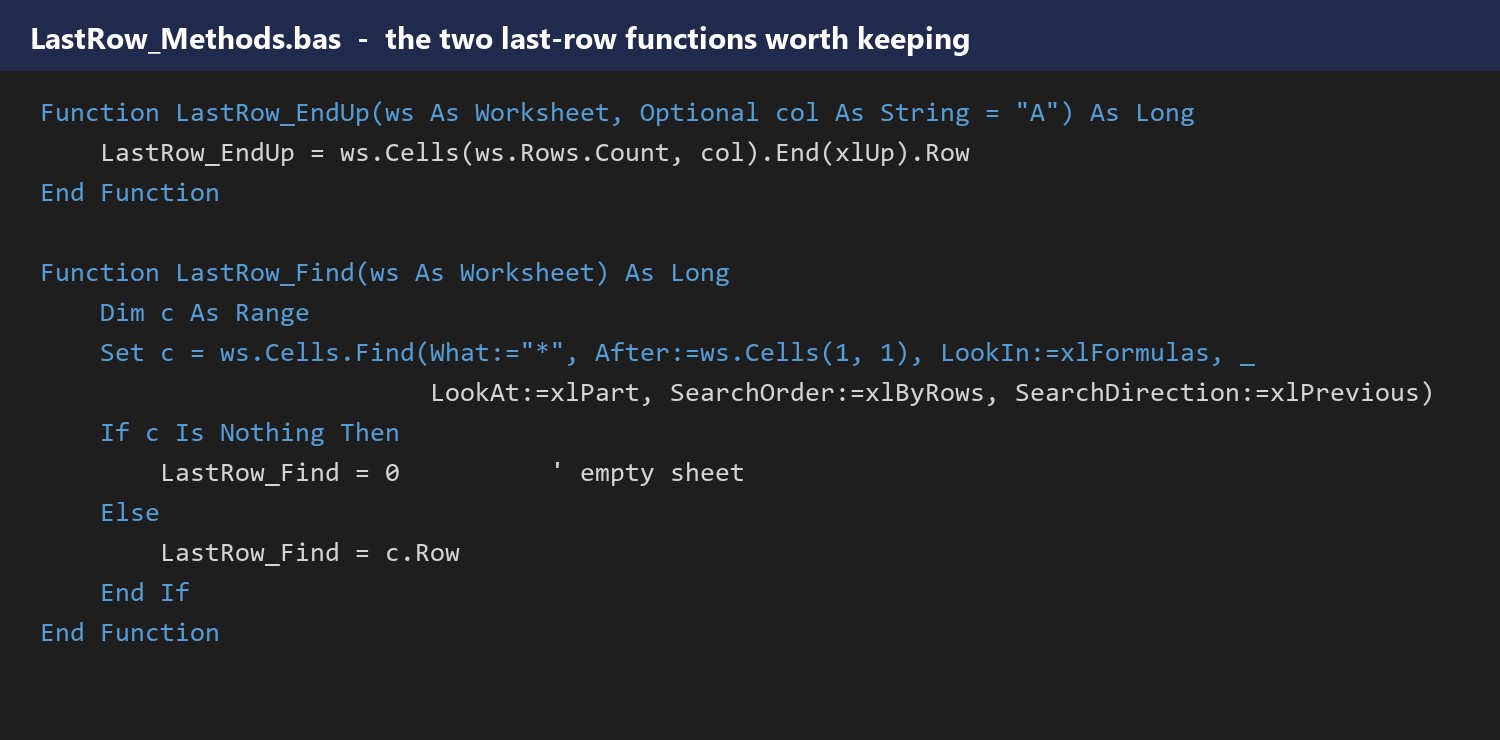
Function LastRow_EndUp(ws As Worksheet, Optional col As String = "A") As Long
    LastRow_EndUp = ws.Cells(ws.Rows.Count, col).End(xlUp).Row
End Function
ws.Rows.Count is the last row of the sheet (1,048,576 in modern Excel), so the code starts at the bottom and presses the equivalent of Ctrl+Up. Blank rows in the middle do not matter, and formatting does not matter. It returned 32, the right answer. Never hard-code 65536; that was the limit in Excel 2003.
The catch is the column you choose. Run the same function on column H, the Notes column, and you get 28, because the last note is in row 28. Always point it at a column that every record fills.
Method 2: End(xlDown), the trap that looks right
Range("A1").End(xlDown).Row walks down from the top and stops at the first empty cell. On clean data it gives the same answer as Method 1, which is why so many recorded macros use it. With one deleted row it returned 11, and a macro that pastes into row 12 would then overwrite the orders below. Use it only to find the end of a block, not the end of the data.
Method 3: CurrentRegion
CurrentRegion is the block you get with Ctrl+A inside the data. It is handy for copying a tidy table in one line, but it ends at the first fully blank row and column. Here it also returned 11.
Method 4: UsedRange
With ws.UsedRange
    lastRow = .Row + .Rows.Count - 1
End With
UsedRange is the area Excel thinks you have used, and that includes cells that only have formatting. The yellow fill in row 45 pushed the answer to 45. Notice the .Row + part too: UsedRange.Rows.Count on its own is wrong whenever the used area does not start in row 1.
Method 5: Find, for the last row in any column
Function LastRow_Find(ws As Worksheet) As Long
    Dim c As Range
    Set c = ws.Cells.Find(What:="*", After:=ws.Cells(1, 1), LookIn:=xlFormulas, _
                          LookAt:=xlPart, SearchOrder:=xlByRows, SearchDirection:=xlPrevious)
    If c Is Nothing Then
        LastRow_Find = 0
    Else
        LastRow_Find = c.Row
    End If
End Function
Find searches backwards from A1 (so it wraps to the bottom of the sheet) row by row for anything at all. It returned 36, the sign-off note in column J, which is correct for its question: the last row with data in any column. That is what you want before clearing an old report or setting a print area. For adding a new order, you want Method 1.
Two details matter. The If c Is Nothing check stops error 91 on an empty sheet; my test returned 0 there. And Find remembers its settings from the last search, including the Find and Replace dialog, so always pass every argument as shown.
Method 6: Excel Tables (ListObject)
With ws.ListObjects("tblOrders").DataBodyRange
    lastRow = .Row + .Rows.Count - 1
End With
If the data is an Excel Table, the Table already knows its size. ListRows.Count gave 30 orders, and the last data row is 31 because the header sits in row 1. If the Table is empty, DataBodyRange is Nothing, so check for that first (the .bas file does). New rows added with ListRows.Add extend the Table automatically.
Bonus: the last column
The same idea works sideways: lastCol = ws.Cells(1, ws.Columns.Count).End(xlToLeft).Column. On the Orders sheet it returned 8, column H, the Notes header.
4 traps I hit while testing
- Filtered lists. I filtered out Chattanooga, which hid row 32. End(xlUp) then returned 31, the last visible row. Find still returned 36. If your macro may run on filtered data, clear the filter first (
ws.AutoFilterMode = False) or use Find. - Formulas that return “”. A cell with
=""looks empty but counts as data. End(xlUp) and Find withLookIn:=xlFormulasboth returned row 15 for it. Find withLookIn:=xlValuesskipped it and returned 10, the last real value. - Empty sheets. End(xlUp) on a blank sheet still says row 1. Check
IsEmpty(ws.Range("A1"))or use the Find version, which returns 0. - Integer overflow.
Dim lastRow As Integerfails with run-time error 6, Overflow, as soon as a value passes 32,767. AssigningRows.Countto an Integer failed in my test. Use Long. Module 4 of the course covers data types for exactly this reason.
Put it to work: add a record under the last row
Sub AddOrderBelowLastRow()
    Dim ws As Worksheet, nextRow As Long
    Set ws = ThisWorkbook.Worksheets("Orders")
    nextRow = LastRow_EndUp(ws, "A") + 1
    ws.Cells(nextRow, "A").Value = "BR-2031"
    ws.Cells(nextRow, "B").Value = DateSerial(2026, 11, 30)
    ws.Cells(nextRow, "C").Value = "Maple Street Dental"
    MsgBox "New order written to row " & nextRow, vbInformation
End Sub
In the test the new order landed in row 33, right under the data, and the gap in row 12 did no harm. The same + 1 pattern drives data-entry forms, logs and monthly import macros. The loop version, For r = 2 To lastRow, is covered in my free guide to VBA loops in Excel, and the Range and Cells basics are in VBA Cells and Range.
Excel VBA last row cheat sheet
Save this page for the next macro you write.
Practise it, then ask AI the right way
Open the practice workbook, follow the steps on the Start Here sheet, import LastRow_Methods.bas with Alt+F11 and File > Import File, and run CompareLastRowMethods with the Immediate window open (Ctrl+G). Write your answers on the Results sheet, then check them against the solution file.
If you ask an AI assistant “how do I find the last row in VBA?”, it will usually give you Method 1 or Method 5. That is fine, but test the answer on a sheet like this one, with a gap, a stray note and a formatted row. Each module of the course ends with an AI Corner that does exactly this. In Module 3 you ask AI “how do I refer to…” questions and test the answers in the Immediate window. My earlier post on learning VBA with AI as your tutor explains the full prompt-and-test routine.
In the course, this lesson sits in Module 3, “Excel Objects – Workbooks, Sheets and Ranges”, next to Range and Cells, values and formatting by code, and With…End With. Module 6 then uses the last row in For, For Each and Do loops, and the capstone, a monthly report cleaner for Pine Valley Office Supply, relies on it throughout.
NextGenTemplates Academy course
Excel VBA Basics with AI: From Your First Macro to Real Automation
82 lessons in 11 modules plus a Start Here section · 61 video lessons (6h 12m) · 25 practice workbooks · macro recorder, VBA editor, ranges, variables, If and Select Case, loops, MsgBox and InputBox, sheets and workbooks, debugging and error handling · an AI Corner in every module · assessment and quiz for Modules 1-9 · capstone: a one-click monthly report cleaner · certificate of completion · lifetime access.
Price: ₹2,499 in India (regular ₹3,999) · $59 internationally (regular $79). One-time payment, no subscription. Needs Excel for Windows (Microsoft 365, 2021, 2019 or 2016). No programming experience needed.
Not sure VBA is your next step? Browse the Academy learning paths or see which advanced Excel skills employers expect.
Frequently asked questions
What is the best way to find the last row in Excel VBA?
For most macros use ws.Cells(ws.Rows.Count, “A”).End(xlUp).Row on a column that every record fills, and store it in a Long variable. Use Cells.Find with SearchDirection xlPrevious when you need the last row in any column, and DataBodyRange when the data is an Excel Table.
Why does End(xlDown) give the wrong last row?
End(xlDown) stops at the first empty cell below the start cell. One blank row in the middle of your data makes it return the row above the gap. In the test file it returned 11 instead of 32.
Why is UsedRange bigger than my data?
UsedRange includes cells that only have formatting, such as a fill colour or a border, and cells that once held data. In the test file a yellow fill in row 45 made it return 45. Clear the extra formatting or use End(xlUp) or Find instead.
Does End(xlUp) work with filtered data?
It returns the last visible row, not the last row. With the last order filtered out, the test returned 31 instead of 32. Clear the filter first or use Cells.Find, which still found the last row with data.
Should lastRow be Integer or Long?
Long. An Integer only holds up to 32,767, and a sheet has 1,048,576 rows, so an Integer gives run-time error 6, Overflow, on large data.
Next time a macro writes over your data or misses the last few rows, check which last-row method it uses first. Happy automating!
Priyendra Kumar (PK), founder of NextGenTemplates and creator of PK: An Excel Expert