
Can you really learn VBA with AI? Yes, and in 2026 it is one of the fastest ways to start automating Excel. But there is a catch that nobody tells beginners: ChatGPT, Copilot and Claude will happily write you a macro that looks perfect and still breaks your data. The people who get real value from AI are the ones who understand enough VBA to read, test and fix what the assistant writes.
In this guide I will share the learning order I recommend, where AI helps you most, where it misleads beginners, and a simple routine to make every AI answer prove itself in Excel. I have been teaching Excel and VBA on YouTube since 2017, and this is the same approach I used to build my Excel VBA Basics with AI course.
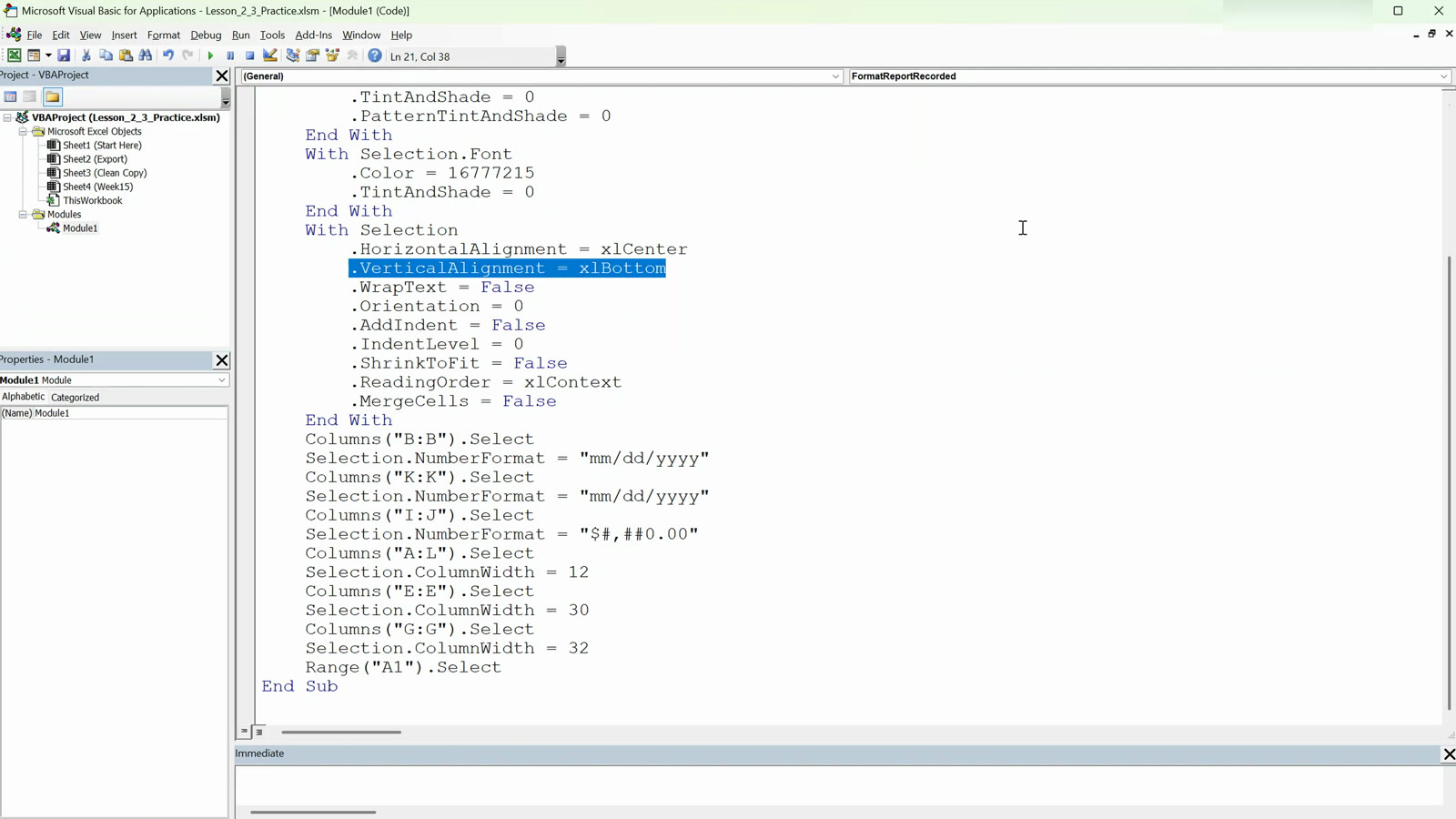
A real frame from Lesson 2.3 of the course: a long recorded macro, full of Select statements, just before we clean it up.
Why learn VBA with AI instead of only copying code?
Ten years ago, learning VBA meant searching forums, copying a snippet and hoping it worked on your sheet. Today an AI assistant can explain any line, write a first draft in seconds and even suggest why your code throws an error. That is a huge advantage for a beginner.
The risk is that AI makes it very easy to skip understanding. If you cannot read the code, you cannot tell whether it loops through 500 rows or only the first 50, whether it overwrites a column, or whether it quietly works on the wrong sheet. So the goal is not “let AI write my macros”. The goal is “use AI as a patient tutor while I learn to think in VBA”. Once you have that skill, AI becomes a real speed boost instead of a gamble.
What AI is good at (and where it trips up beginners)
Here is a practical split, based on what I see when I test AI answers on real business files.
Where AI helps a lot:
- Explaining code line by line. Paste a recorded macro and ask what each line does. This is the single best learning use.
- First drafts of small tasks. “Loop through column D and colour the row red when the value is below 0” is a perfect AI request.
- Explaining error messages. A “Type mismatch” or “Subscript out of range” becomes much less scary when someone explains it in plain words.
- Writing comments, documentation and friendly messages. MsgBox text and input checks are quick wins.
Where AI often goes wrong:
- Last row logic. Code that assumes the data always ends at a fixed row, or that the first column never has blanks.
- Select and Activate everywhere. Many answers copy the macro recorder’s style, which is slow and fragile.
- The wrong sheet or workbook. Confusing ActiveWorkbook with ThisWorkbook, or not saying which sheet a range belongs to.
- Missing error handling. The macro works on the happy path and crashes the first time a user types text instead of a number.
- Confident but invented answers. Occasionally an assistant uses a property or argument that does not exist in VBA.
None of these are reasons to avoid AI. They are reasons to learn the basics first, so you can spot them.
The learning path: what to learn, in what order
This is the order I follow in the course. Each stage builds on the one before, and AI has a specific job at every stage.
Stage 1: Macros and the macro recorder
Start by recording a macro, for example formatting a weekly sales report, and running it from a button or shortcut. Learn what an .xlsm file is, how macro security works, and the difference between absolute and relative recording. AI job: ask it to explain your recorded macro line by line.
Stage 2: The VBA editor and your first code
Open the editor with Alt + F11, write your first Sub from scratch and step through it with F8, breakpoints and Debug.Print. Then clean up recorded code by removing Select and Activate. AI job: let AI clean recorded code, then check its version line by line against yours.
Stage 3: Workbooks, sheets and ranges
This is where most beginner bugs live. Learn the object model (Application, Workbooks, Worksheets, Range), Range versus Cells, finding the last row and column the right way, and With…End With. AI job: ask “how do I refer to…” questions and test every answer in the Immediate window.
Stage 4: Variables, decisions and loops
Learn Dim and data types (Long, Double, Currency, String, Date, Boolean, Variant), If…Then…Else, Select Case, then For, For Each and Do loops. Loops plus If statements are where VBA starts saving real hours. AI job: turn a business rule into an If or Select Case block, and ask it to explain why a loop is slow.
Stage 5: Friendly tools, sheets and workbooks
Build tools other people can use: MsgBox and InputBox with input checks, buttons, the status bar, and screen updating. Then automate sheets and workbooks, such as splitting data into one sheet per region or building an index sheet with hyperlinks. AI job: review an AI-generated macro before you run it on real data.
Stage 6: Debugging and error handling
Learn the three kinds of errors (compile, run-time and logic), the Locals and Watch windows, and how to use On Error GoTo properly. AI job: paste the exact error and the code, and ask what caused it before you ask for a fix.
Stage 7: AI as your VBA tutor
Only now, with the basics in place, do you start using AI seriously: writing strong prompts, comparing assistants fairly, and building your own prompt library.
NextGenTemplates Academy course
Excel VBA Basics with AI: From Your First Macro to Real Automation
12 modules · 82 lessons · 61 video lessons (6h 12m) · 25 downloadable practice workbooks · macro recorder, VBA editor, ranges, variables, If and loops · MsgBox, InputBox and buttons · debugging and error handling · an AI Corner in every module · assessments and quizzes · capstone: a monthly report cleaner · certificate of completion · lifetime access.
Price: ₹2,499 in India (regular ₹3,999) · $59 internationally (regular $79). One-time payment, no subscription. Needs Excel for Windows (Microsoft 365, 2021, 2019 or 2016). No programming experience needed.
How to prompt AI for VBA: context, task, constraints, test
Most weak AI answers come from weak prompts. “Write a macro to clean my report” gives the assistant nothing to work with. In the course I teach a four-part prompt formula, and you can start using it today:
- Context. Describe the workbook: sheet names, the header row, which columns hold what, roughly how many rows, and whether there are blanks.
- Task. One clear job. “Delete rows where Status in column L is Cancelled” is better than “tidy up the data”.
- Constraints. Say what the code must and must not do: no Select or Activate, work on the sheet named Export only, find the last row dynamically, add comments, use Option Explicit.
- Test. Ask the assistant how you should test the result, for example “tell me what the row count should be before and after”.
A good habit: ask for the code and a short explanation of each block. If the explanation does not match what you see when you step through with F8, you have found a problem before it touched your real file.
Never trust, always verify: a quick checklist for AI-written macros
Before you run any AI-generated macro on real data, go through these checks:
- Run it on a copy. Always. VBA changes cannot be undone with Ctrl + Z.
- Read every line that writes or deletes. Find each place where the code changes values, clears ranges or deletes rows and sheets.
- Check which sheet and workbook it points at. Look for unqualified Range calls and ActiveSheet assumptions.
- Check the last-row logic. Add a blank row or extra data and see if the macro still covers everything.
- Step through with F8 and watch the Locals window. Compare counts and totals before and after.
Also think about privacy. Do not paste customer names, salaries or confidential data into a public AI tool. Describe the structure of your data instead, or use made-up sample rows. And never run a macro file you downloaded from an unknown source.
Which AI assistant is best for learning VBA?
There is no single winner, and the honest answer depends on your setup. Microsoft Copilot sits inside Microsoft 365, ChatGPT and Claude work in the browser, and all of them can explain and draft VBA. What matters more than the brand is how you test. In Module 10 of the course I run Copilot and Claude side by side on the same prompt and judge them on the same file, so you see how to compare answers fairly instead of trusting whichever one sounds more confident.
My suggestion: pick one assistant you already have access to, use the prompt formula above, and save the prompts that work into your own prompt library. That library becomes more valuable than any single tool.
A realistic practice plan
If you can give VBA about 30 to 45 minutes a day, a steady plan looks like this:
- Week 1: record and run macros, explore the editor, write your first Subs.
- Week 2: ranges, last row, variables and data types.
- Week 3: If, Select Case and loops on a real report you use at work.
- Week 4: user-friendly tools, sheet automation, debugging and your first AI prompt library.
Then build one project that saves you real time. In the course, the capstone is a monthly report cleaner for Pine Valley Office Supply, a fictional business with real-looking sales data, that turns half a day of manual clean-up into one click. Pick something similar from your own job: the report you dread every Monday is the perfect first automation.
Before VBA, make sure your formula basics are solid. If you are still getting comfortable with Excel itself, start with my 30-day roadmap to learn Excel fast, and read what advanced Excel skills employers expect to see where VBA fits. You can also browse the Academy learning paths or test your skills first.
Free resources to start today
If you want to try VBA before enrolling anywhere, my free Excel VBA course on PK: An Excel Expert has 18 chapters from macro recording onwards. And to see AI and VBA working together on a real tool, watch my free tutorial on building a data entry form in Excel VBA with ChatGPT.
When you want a structured route with practice files, an assessment and quiz after each core module, an AI Corner that shows the mistake AI usually makes on each topic, and a capstone to finish, the Excel VBA Basics with AI course is built exactly for that. You can watch the free preview lessons first.
Frequently asked questions
Can I learn VBA with AI if I have never written code?
Yes. You need basic Excel skills, such as opening files, working with sheets and writing simple formulas. Start with the macro recorder and ask AI to explain the code it writes, then learn to write and test small macros yourself.
Is VBA still worth learning in 2026?
Yes, for anyone who repeats the same Excel steps every week. VBA runs inside Excel for Windows that most offices already use, and knowing it lets you understand, check and fix the code AI writes for you.
Can ChatGPT or Copilot write VBA code for me?
They can write good first drafts, especially for small tasks. But AI often gets last-row logic, sheet references and error handling wrong, so always run AI code on a copy, read every line that changes data and step through it with F8.
How long does it take to learn VBA basics?
With 30 to 45 minutes a day, most Excel users can record, read and write simple macros with loops and decisions in about four weeks. Building confident, reliable tools takes a few more projects of practice.
Do I need Excel for Windows to learn VBA?
For the Excel VBA Basics with AI course, yes: it needs Excel for Windows (Microsoft 365, 2021, 2019 or 2016). A free AI assistant account is helpful for the AI Corners but optional.