
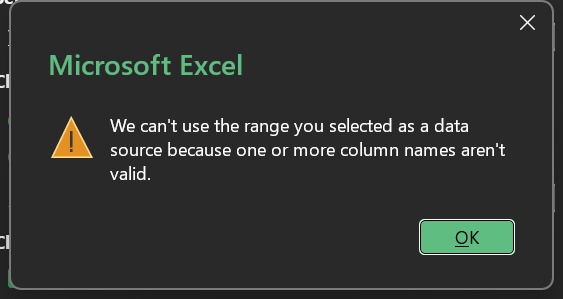
The pivot table field name is not valid message means one column in your source data has no usable header. It is usually a blank header cell, a merged header or a hidden column with no label. Fix the header row and the PivotTable works. One thing most guides miss: when I tested this in Microsoft 365 Excel for Windows (build 20527, November 2026), the normal Insert PivotTable route did not stop with that error at all. It quietly created a field called Field4, which is much easier to miss.
This tutorial comes from Module 15 of my Excel Pivot Tables & Dashboards course, Lesson 15.4, “Pivot troubleshooting clinic: 8 errors and their fixes”. That lesson covers this problem and seven others. Here I use fresh sample data from a made-up US store, so you can follow every step in the free practice file.
⬇️ Join Free on Skool & Download the Practice File
Free membership · takes 1 minute · the file is in Classroom → Free Downloads from YouTube
What the pivot table field name is not valid error means
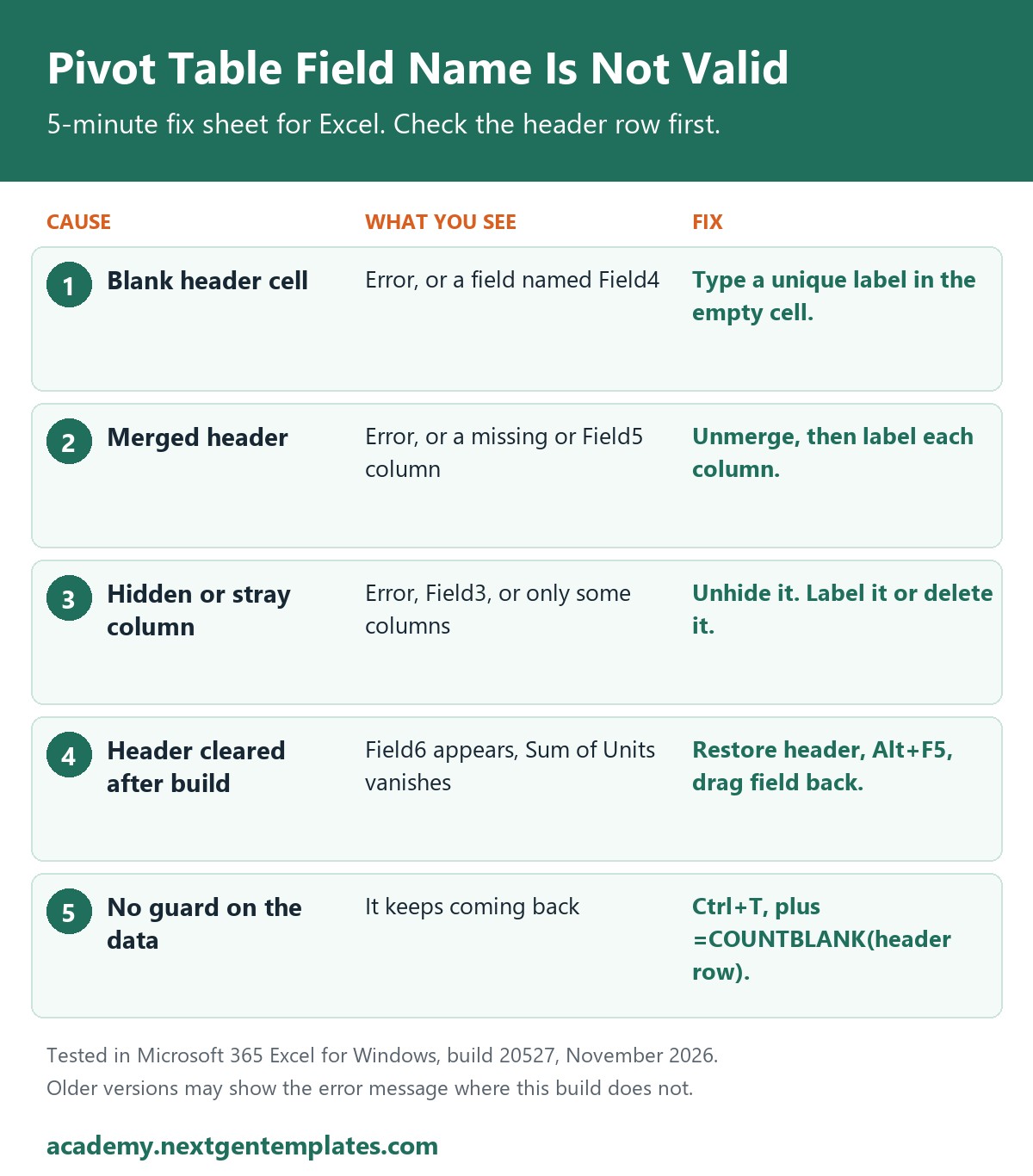
Every PivotTable field gets its name from the top cell of its column. The full message starts “The PivotTable field name is not valid”, and it appears when Excel cannot read a name for one of those columns. Depending on your Excel version and the route you use, the same broken header can show up in different ways. All of these came from my own tests except the classic message, which older setups still report:
| Cause | What you see | Fix |
|---|---|---|
| Blank header cell | The error, or a field named Field4 | Type a unique label in the empty cell |
| Merged header | The error, a Field5 column, or the last column missing | Unmerge, then label each column |
| Hidden or stray column | The error, Field3, or only some of your columns | Unhide it, then label or delete it |
| Header cleared after the build | A new Field6 appears and Sum of Units vanishes on refresh | Restore the header, Alt+F5, drag the field back |
| No guard on the data | The problem keeps coming back | Ctrl+T, plus a COUNTBLANK check |
Step 1: Find the broken header in 10 seconds
Do this before anything else when you see pivot table field name is not valid, especially on wide sheets. If your headers are in B9:I9, type this in any empty cell:
=COUNTBLANK(B9:I9)
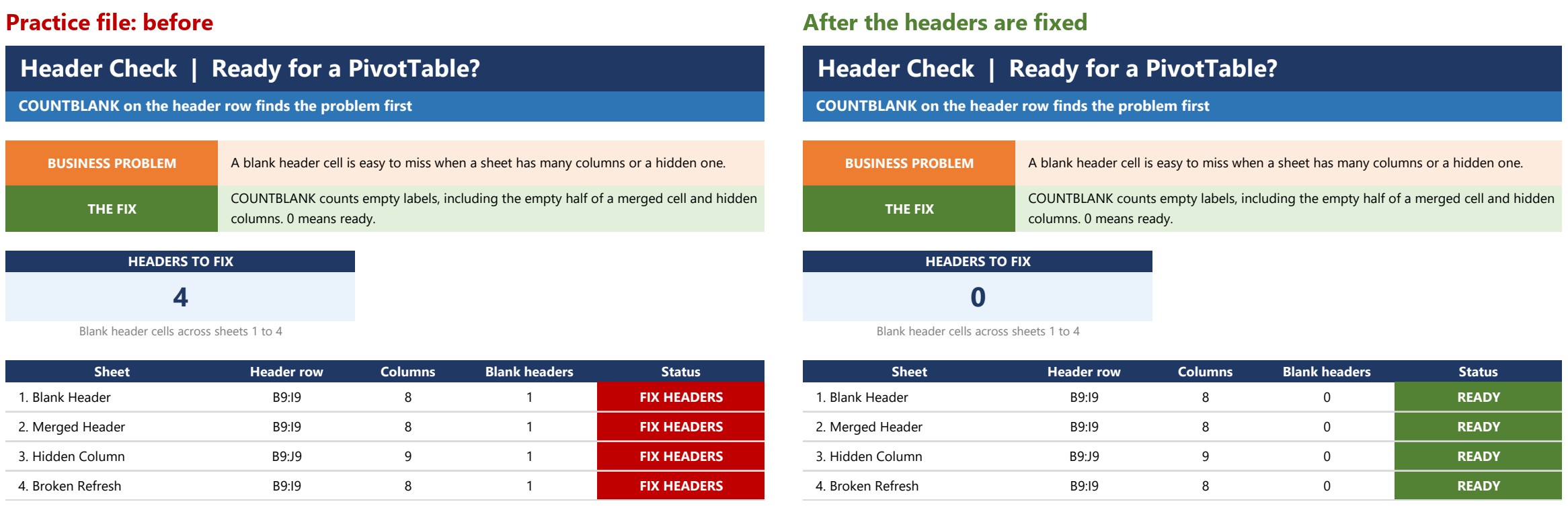
The answer should be 0. Anything else means that many header cells are empty. COUNTBLANK also counts the empty half of a merged cell and the header of a hidden column, so it catches problems your eyes will not. To see exactly where they are, select the header row and use Home > Find & Select > Go To Special > Blanks.
Sheet 5 of the practice file runs this check on all four broken sheets. It starts at 4 headers to fix, with red badges, and each badge turns green as you repair that sheet.
Fix 1: Type a label in the blank header cell
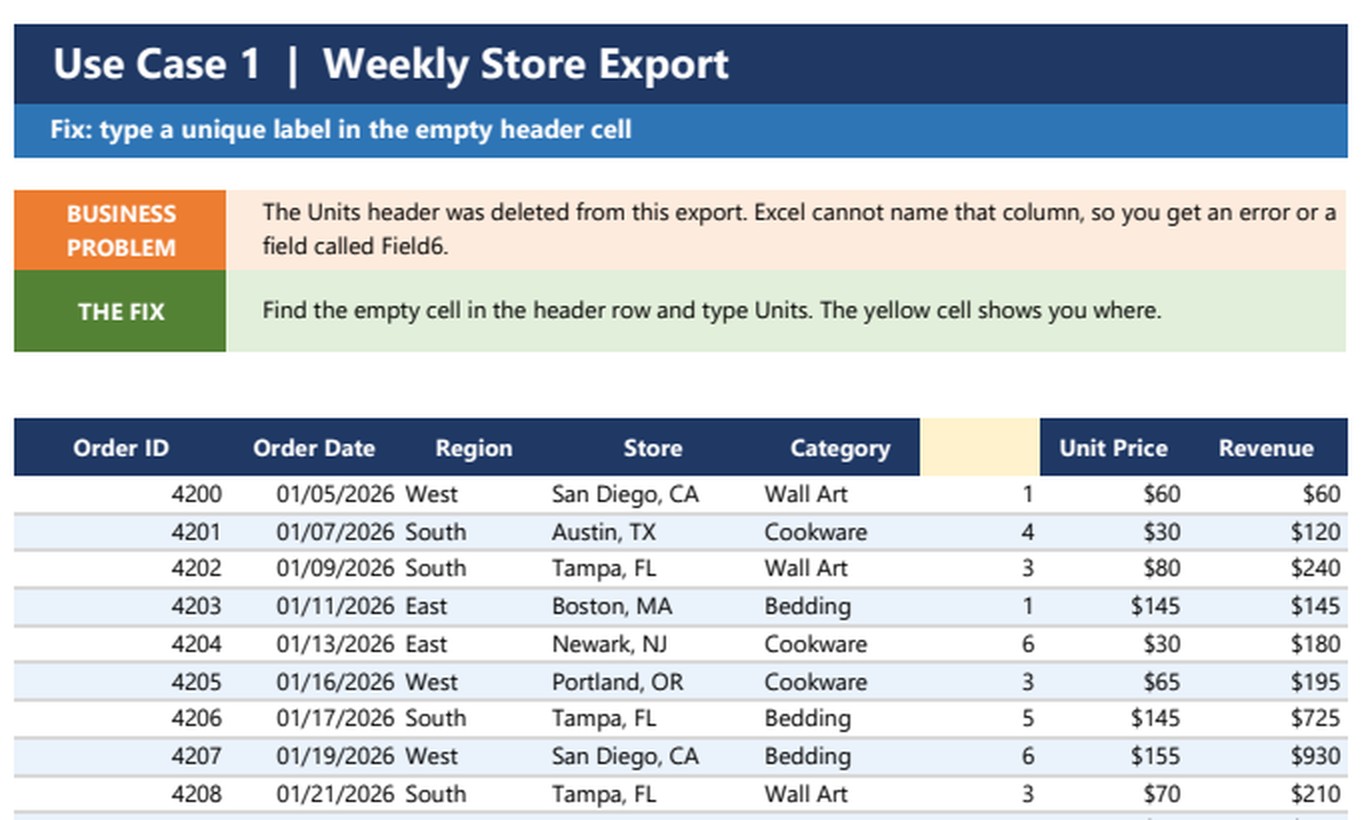
- Open sheet 1, “Blank Header”. The yellow cell above the numbers is the missing Units header.
- Click any data cell and choose Insert > PivotTable. Note what your Excel does. Mine built it and listed a field called Field6.
- Cancel or delete that test, type Units in the yellow cell, and build it again. The field list now shows the real name.
The label must be in the header row itself. A note in the row above does not count. If your Excel shows pivot table field name is not valid instead of Field6, this same fix clears it.
Fix 2: Unmerge headers and name each column
On sheet 2, one heading called Sales is merged across Unit Price and Revenue. Only the first cell holds the text, so the second column has no name. In my test the dialog picked a range that dropped the last column altogether, which is worse than an error because your report just looks incomplete.
- Select the merged cell and click Home > Merge & Center to unmerge it.
- Type Unit Price and Revenue in the two cells.
- If you want a group heading for printing, put it in a row above the data and leave a blank row between them.
Fix 3: Unhide the column nobody can see
Sheet 3 has a hidden column of rep codes with no header. You cannot see it, but a PivotTable reads hidden columns like any other. In my test, a completely empty hidden column cut the automatic selection in two, so only the columns to its left reached the PivotTable. When I selected the whole range myself, the hidden column came in as Field3.
- Select columns E and G, right-click and choose Unhide.
- Type Rep Code in the empty header, or delete the column if nobody needs it.
Fix 4: Repair a PivotTable that broke on refresh
This one catches people because the report worked last month. On sheet 4, the Units header was cleared after the PivotTable was built. Select the PivotTable and press Alt+F5. In my test Excel gave no warning: Units became Field6 and the Sum of Units column disappeared from the report.
- Type Units back into the empty header.
- Press Alt+F5 to refresh. The field gets its real name back.
- Drag Units into Values again. The refresh restores the name, but it does not put the field back in your layout.
That third step is the gotcha. Compare the report with an old copy before you send it, because a missing column is easy to overlook. If your refresh problem is about a wrong range instead, my free guide on refreshing a Pivot Table and changing its data source walks through it.
Fix 5: Stop it coming back with an Excel Table
Select your data and press Ctrl+T before you build the PivotTable. In my test the Table filled a blank header with Column1, unmerged a merged header, and refilled a header that someone cleared later. Rename those Column1 labels to something useful, then create the PivotTable from the Table. New rows are also included the next time you refresh.
Messages that look similar but mean something else
Not every PivotTable warning is the pivot table field name is not valid problem. These four messages and one odd result look related, but each has its own cause.
| Message or result | What caused it in my test | What to do |
|---|---|---|
| PivotTable field name already exists | Renaming Sum of Revenue to Revenue, which is already a source column | Use another name, such as Total Revenue |
| Data source reference is not valid | Every header in the selected range was empty | Add the header row, or fix the selection |
| One or more column names aren’t valid | A blank header with “Add this data to the Data Model” ticked | Label every column first |
| Requires at least two rows of source data | Only the header row was selected | Select the data rows too |
| A field called Units2 | Two columns with the same header. Not an error | Rename one so the report reads clearly |
For the settings side of PivotTable problems, see my free PivotTable options and troubleshooting guide on PK: An Excel Expert.
Want to fix the other seven PivotTable problems?
Header errors are only one part of the clinic. Lesson 15.4 also deals with missing new rows, Count instead of Sum, dates that will not group, duplicate items, the overlap error, ghost items and column widths that jump on refresh. Each one is a broken workbook you diagnose and repair yourself. If you are still building your basics, start with my step-by-step learning path for Pivot Tables. For the wider picture, read what to learn for data analysis in Excel.
NextGenTemplates Academy course
Excel Pivot Tables & Dashboards: Basic to Advanced
16 modules · 132 lessons · 101 video lessons (11h 51m) · 61 practice workbooks · slicers, timelines, calculated fields, Power Query, the Data Model and DAX · a hands-on assessment with a self-marking Checks sheet for Modules 1-12, 14 and 15 · a final capstone Retail KPI dashboard · certificate of completion · lifetime access.
Price: ₹2,499 in India (regular ₹3,999) · $59 internationally (regular $79). One-time payment, no subscription. Excel 2016 or later for Windows; Microsoft 365 recommended for the AI, Power Query and Data Model lessons.
Early-bird code EARLYBIRD20 gives 20% off for the first 20 orders (one use per customer). If the code has already been fully used, checkout will simply not accept it.
You can also browse all Academy learning paths to see what comes next.
Frequently asked questions
Why does Excel say the pivot table field name is not valid?
One column in the source range has no usable header. The usual causes are a blank header cell, a merged header, or a hidden column with no label. Give every column its own one-cell label and build the PivotTable again.
Why do I see Field4 or Field6 in my PivotTable Fields list?
Excel could not find a header for that column, so it named the field by its position in the range. In Microsoft 365 build 20527 this happened with no warning. Type a real header in the source data and refresh.
Why did the field name problem appear only after a refresh?
Someone cleared or changed a header in the source data after the PivotTable was built. Restore the header and press Alt+F5. If that field has dropped out of the report, drag it back into the Values or Rows area.
Can duplicate column names cause this error?
Not in my test. With two columns called Units, Excel built the PivotTable and named the second field Units2. It is still worth renaming one so the report is clear.
Does converting my data to an Excel Table prevent this?
Yes, for the header problems in this guide. In my test a Table filled a blank header with Column1, unmerged a merged header, and refilled a cleared header automatically. Give those columns real names afterwards.
Next time you see pivot table field name is not valid, or a report just looks wrong, go to the header row before you touch the PivotTable. Happy learning!
Priyendra Kumar (PK), founder of NextGenTemplates and creator of PK: An Excel Expert