
The pivot table data source reference is not valid message means Excel cannot read the range in the Table/Range box. In my tests it had four causes: square brackets [ ] in the file name, a sheet or name that does not exist, a typo in the reference, or a header row with no labels at all. Fix that one thing and Insert > PivotTable works again. I also broke PivotTables that already existed, and those show different messages when you refresh. This guide covers both.
This tutorial comes from Module 15 of my Excel Pivot Tables & Dashboards course, Lesson 15.4, “Pivot troubleshooting clinic: 8 errors and their fixes”. Here I use fresh sample data from a made-up US garden retailer. Every result below came from Microsoft 365 Excel for Windows in November 2026, so you can repeat each test in the free practice file.
⬇️ Download the Free Practice File (ZIP)
Practice + solution workbook · 40 sample orders · no sign-up
What causes pivot table data source reference is not valid
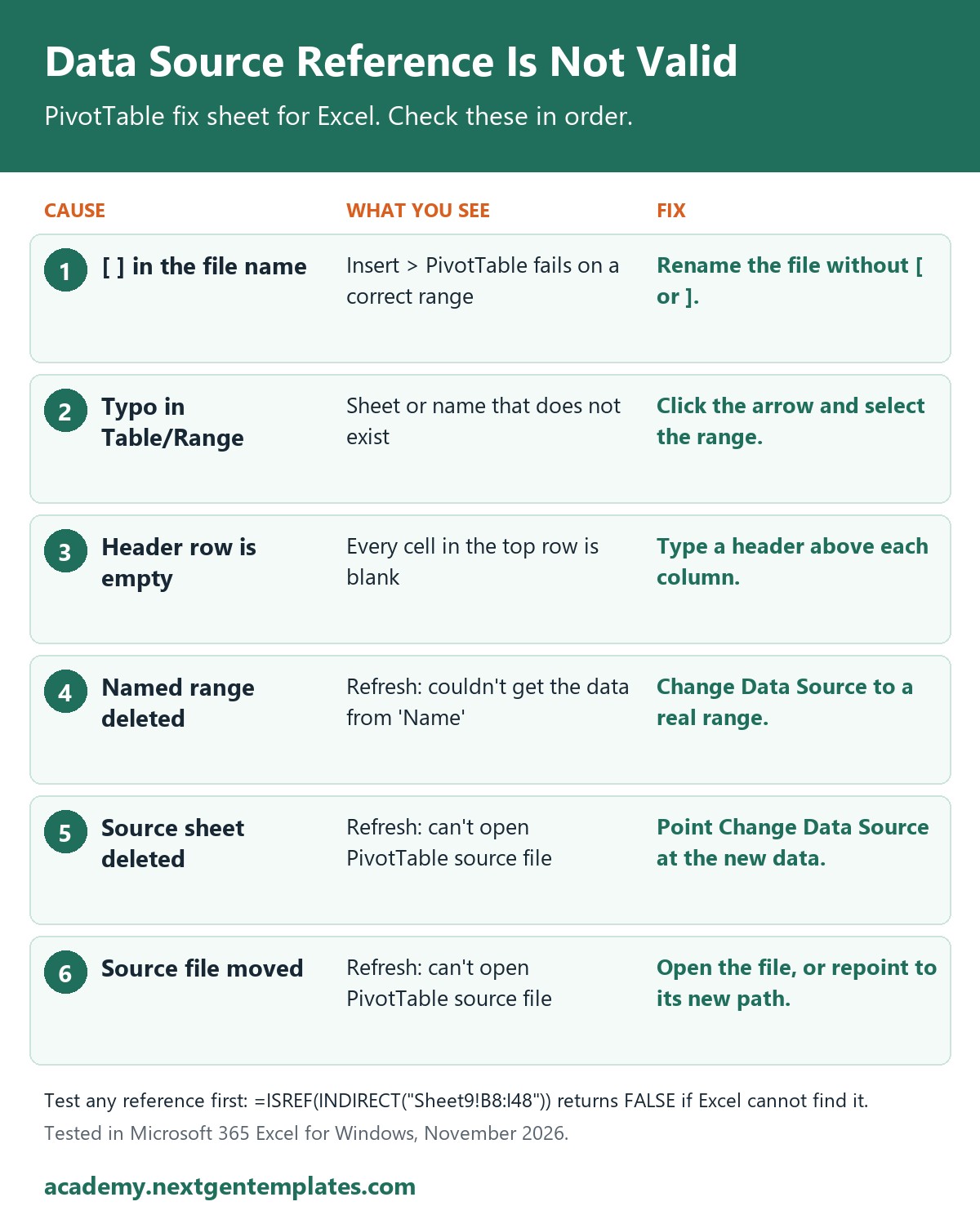
A PivotTable needs a reference Excel can resolve, such as '1. Orders'!B8:I48 or a Table name. When the text cannot be resolved, the dialog stops with this message. Here is what I tested and what each case showed:
| What I did | What Excel showed | Fix |
|---|---|---|
| Opened a file named Store Sales [Nov].xlsx and inserted a PivotTable on a correct range | Data source reference is not valid | Rename the file without [ or ] |
| Typed Sheet9!$A$1:$E$5 when there is no Sheet9 | Data source reference is not valid | Select the range with the mouse |
| Typed SalesData when no such name exists | Data source reference is not valid | Create the name, or use a Table |
| Selected data whose header row was completely empty | Data source reference is not valid | Type a header above each column |
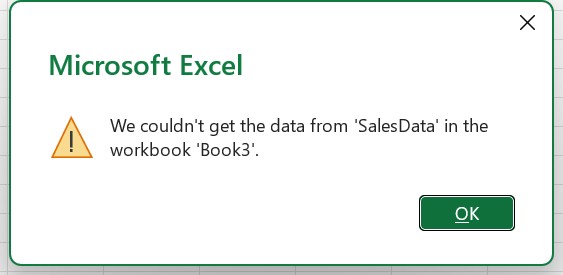
| Deleted a named range, then refreshed the PivotTable | We couldn’t get the data from ‘SalesData’ | Change Data Source |
| Deleted the source sheet, or moved the source file, then refreshed | Can’t open PivotTable source file | Change Data Source |
Fix 1: Remove square brackets from the file name
This is the cause people miss, because the range itself is perfect. Excel writes references to other workbooks as [Book.xlsx]Sheet!A1, so square brackets have a special job. When the file name contains its own bracket, Excel cannot read the reference to your data.
- Look at the title bar. If the name has [ or ], close the workbook.
- Rename it in File Explorer, for example from Store Sales [Nov].xlsx to Store Sales Nov.xlsx.
- Open it again and choose Insert > PivotTable. It works.
Two things I learned while testing this. First, Excel’s own Save As will not let you type [ or ] in a file name, so these files nearly always come from outside Excel, such as a rename in File Explorer or a name another program created. Second, a PivotTable built before the rename also breaks: Alt+F5 gave me “Can’t open PivotTable source file”. After I removed the brackets, the same report refreshed normally.
Fix 2: Select the range instead of typing it
When you type into the Table/Range box, one wrong character is enough. A sheet that does not exist, a name that was never created, or a sheet name typed without its full spelling all give the same message.
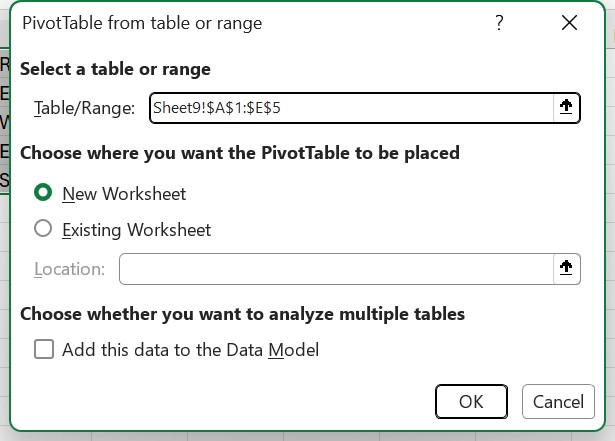
- Click the arrow at the right of the Table/Range box.
- Drag over your data, headers included, and press Enter.
- If a sheet name has spaces, Excel adds the quote marks for you:
'1. Orders'!$B$8:$I$48. Typed by hand, they are easy to forget.
Fix 3: Put a header on every column
When I selected data whose top row was completely empty, Excel gave this same message. If only one or two headers are missing, current Excel builds the PivotTable anyway and names the column Field4 or similar. That case has its own guide: pivot table field name is not valid: 5 fixes.
Sheet 2 of the practice file has 40 orders with an empty header row. Select B9:I49, try Insert > PivotTable, read the alert, then type the eight headers (Order ID to Revenue) in row 9 and try again.
Fix 4: Repair a PivotTable that will not refresh
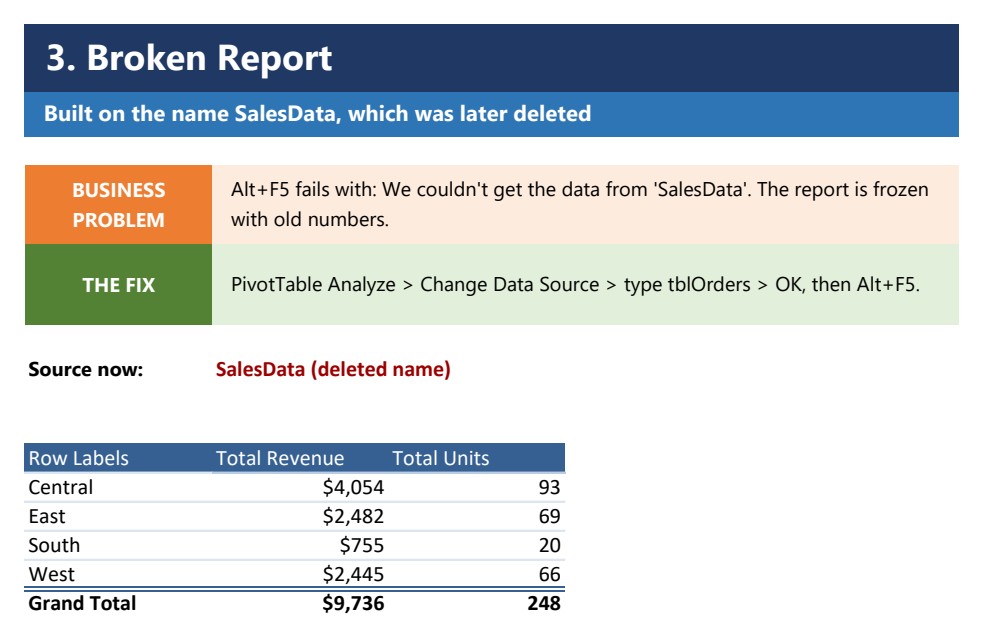
If the PivotTable already exists, deleting its source does not show “data source reference is not valid”. It shows a different message when you refresh. These are the two I got:
- We couldn’t get the data from ‘SalesData’: the PivotTable was built on a named range that someone deleted in Name Manager.
- Can’t open PivotTable source file: the source sheet was deleted, the file was renamed with brackets, or an external source workbook was moved.
The fix is the same for all of them:
- Click anywhere inside the PivotTable.
- Choose PivotTable Analyze > Change Data Source > Change Data Source.
- Select the range that holds the data now, or type a Table name, and press OK.
- Press Alt+F5. Your layout, fields and number formats stay in place.
Sheet 3 of the practice file is this exact situation: a region report built on a name called SalesData that no longer exists. Convert sheet 1 to a Table called tblOrders (Fix 6), point the report at it, and it refreshes to a grand total of $9,736 from 248 units. For more on the Change Data Source window itself, see my free guide to refreshing a Pivot Table and changing its data source.
Fix 5: Test a reference before you use it
Excel only says the reference is not valid. It does not say which part is wrong. This formula tells you before you open the dialog:
=ISREF(INDIRECT(C9))
Put the reference as text in C9, such as Sheet9!B8:I48 or tblOrders. INDIRECT tries to turn the text into a real range and ISREF returns TRUE if that worked. FALSE means the PivotTable dialog will reject it too. In the practice file it returns FALSE for a missing sheet, a deleted name and a sheet name without its “1.” prefix, and TRUE for the real range and the Table.
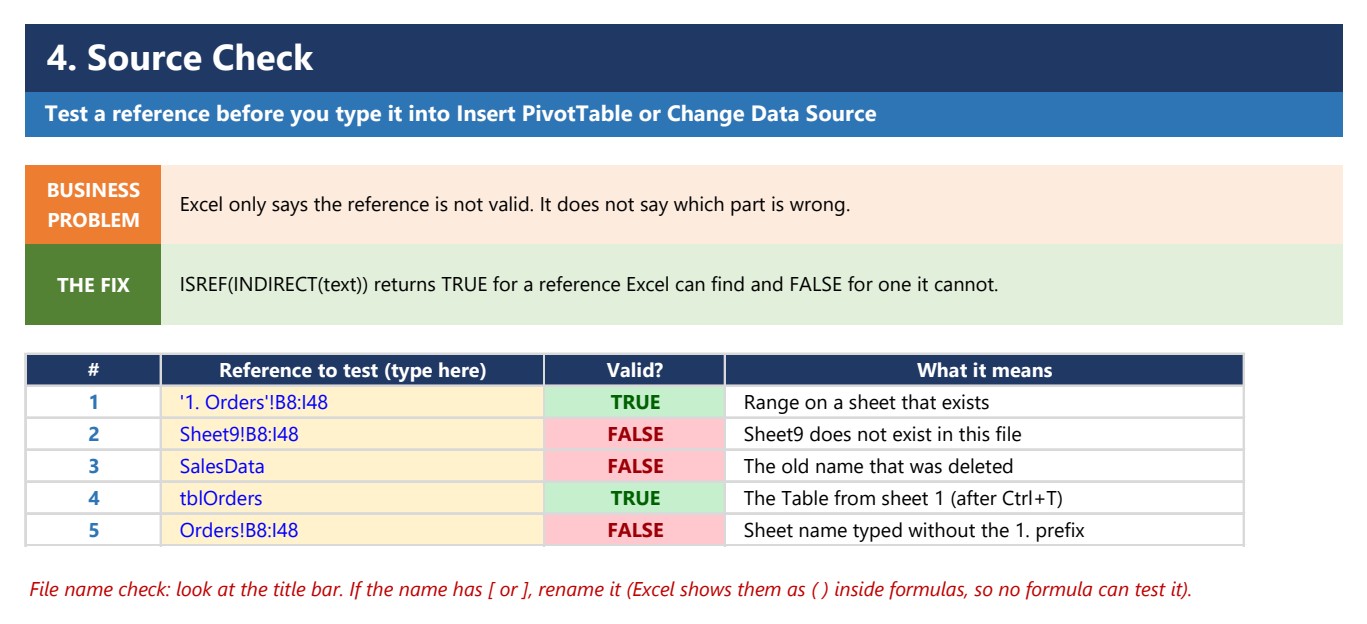
One limit: this check cannot see brackets in the file name. Inside formulas, Excel shows the brackets in a file name as round brackets, so look at the title bar for that one.
Fix 6: Use an Excel Table as the source
Click any cell in your data, press Ctrl+T, and give the Table a clear name under Table Design > Table Name, such as tblOrders. Then use that name as the PivotTable source. In my tests this was the most robust choice. When I renamed the Table, the PivotTable followed the new name automatically. When I converted the Table back to a normal range, the source simply switched to the cell address. Neither change caused an error, and new rows are included the next time you refresh.
Want to fix the other PivotTable problems too?
Lesson 15.4 works through eight broken workbooks, from Count instead of Sum and dates that will not group to the overlap error and ghost items. If you are still learning the basics, start with my step-by-step learning path for Pivot Tables. To see where PivotTables fit in a wider skill set, read what to learn for data analysis in Excel. For PivotTable settings, my free PivotTable options and troubleshooting guide on PK: An Excel Expert is a good next read.
NextGenTemplates Academy course
Excel Pivot Tables & Dashboards: Basic to Advanced
16 modules · 132 lessons · 101 video lessons (11h 51m) · 61 practice workbooks · slicers, timelines, calculated fields, Power Query, the Data Model and DAX · Module 15 troubleshooting clinic with 8 broken workbooks to repair · a hands-on assessment and quiz in every module · a final capstone Retail KPI dashboard · lifetime access.
Price: ₹2,499 in India (regular ₹3,999) · $59 internationally (regular $79). One-time payment, no subscription.
Early-bird code EARLYBIRD20 gives 20% off for the first 20 orders (one use per customer). If the code has already been fully used, checkout will simply not accept it.
Frequently asked questions
What does data source reference is not valid mean in a pivot table?
Excel cannot turn the text in the Table/Range box into a range it can read. In my tests that happened for four reasons: square brackets in the file name, a sheet or name that does not exist, a header row with no labels at all, or a typo in the reference.
Why do I get this error when the range looks correct?
Check the file name in the title bar. If it contains a square bracket, Excel reads it as part of the reference and rejects a range that is otherwise correct. Rename the file without brackets, reopen it and insert the PivotTable again.
How do I fix a PivotTable that stopped refreshing?
Click inside the PivotTable, choose PivotTable Analyze, then Change Data Source, and select the range or Table that holds the data now. Press OK and then Alt+F5. If the source was a named range that was deleted, point it at an Excel Table instead.
Can I check a reference before I use it?
Yes. Type the reference as text in a cell and use ISREF with INDIRECT on it. TRUE means Excel can find it and FALSE means the PivotTable dialog will reject it. It works for sheet ranges, named ranges and Table names.
Does renaming an Excel Table break the PivotTable?
No. In my test the PivotTable followed the new Table name automatically, and converting the Table back to a normal range simply switched the source to a cell address. Neither change caused an error.
Next time Excel says the data source reference is not valid, check the file name first, then the reference, then the header row. Happy learning!
Priyendra Kumar (PK), founder of NextGenTemplates and creator of PK: An Excel Expert