
If you are searching for how to learn Google Sheets, you have probably noticed two things already. First, Google Sheets looks simple, so most people learn it by accident: a shared file at work, a few SUM formulas, a lot of copy-paste. Second, the free tutorials online jump around. One video shows QUERY, the next shows a chart, and nothing connects. In this guide I will share the learning path I recommend, the order of skills that actually matters, how long each stage takes and how to practise so the skills stay with you.
I have worked with spreadsheets for more than 20 years and have been teaching Excel, Google Sheets and Power BI on YouTube since 2017. The people who get stuck in Google Sheets are rarely short of videos. They are missing an order. They try ARRAYFORMULA before they understand absolute references, or build a dashboard on data that is still full of extra spaces and text-numbers.
Why learn Google Sheets properly in 2026?
Google Sheets is free, it runs in any browser and several people can work in the same file at the same time. That is why so many small businesses, schools, startups and remote teams run their daily work in it: order trackers, sales reports, attendance, budgets and project lists.
But Sheets is not just “Excel in a browser”. It has functions Excel users often do not know, like QUERY, IMPORTRANGE, GOOGLEFINANCE and smart chips, and it has its own way of sharing, protecting and automating files with Apps Script. If you learn those properly, you stop rebuilding the same report every week and start building files that update themselves.
How to learn Google Sheets: the learning path, in order
Here is the order I use when I teach. Each stage builds on the one before it. At about an hour a day, most people can work through all eight stages in eight to ten weeks.
Stage 1: The basics and the interface (week 1)
Create a spreadsheet, learn the menus and toolbar, and get comfortable with rows, columns, cells and sheets. Learn how to import and export Excel and CSV files, because most real data arrives that way. This stage is quick, but do not skip it. Knowing where things are saves you hours later.
Stage 2: Data entry and formatting (week 1-2)
Learn to enter data the smart way with Smart Fill, number, date and currency formats, alternating colors and the newer Convert to table feature. Practise find and replace and basic data cleanup. Good formatting is not decoration. It is what makes a sheet readable for the next person.
Stage 3: Formulas and core functions (weeks 2-3)
This is the most important stage. Understand how formulas work and the difference between relative, absolute and mixed references. Then learn the functions you will use every day: SUM, AVERAGE, COUNT, SUMIFS and COUNTIFS, named ranges and formulas that pull from other sheets. If you are comfortable here, everything after it becomes easier.
Stage 4: Logic, lookups, text and dates (weeks 3-4)
Next come IF, AND, OR, IFS, SWITCH and IFERROR, then lookups: VLOOKUP, XLOOKUP and INDEX with MATCH. After that, clean messy text and dates with SPLIT, TEXTJOIN, the REGEX functions and date functions. Most real-world sheet problems are lookup or text problems, so spend time here.
Stage 5: Organizing and validating data (week 5)
Learn sort, filter, filter views and slicers, so several people can look at the same data without disturbing each other. Then control data entry with dropdowns, checkboxes, data validation, conditional formatting and smart chips. A sheet that stops bad data at the door is worth more than any clever formula.
Stage 6: Dynamic arrays and QUERY (weeks 6-7)
This is where Google Sheets gets powerful. FILTER, SORT and UNIQUE return whole ranges from one formula. ARRAYFORMULA, SEQUENCE and SORTN let one formula do the work of hundreds. QUERY lets you summarise data with a short SQL-like statement. Finish with LET and LAMBDA. Learn these after Stage 3, not before, or the results will feel like magic you cannot fix.
Stage 7: Pivot tables, charts and live data (weeks 7-8)
Build pivot tables with filters, grouping and calculated fields, and try Explore for quick AI-assisted analysis that you always check. Choose the right chart, add sparklines and scorecard charts, then bring in live data with IMPORTRANGE, IMPORTHTML, GOOGLEFINANCE and Google Forms.
Stage 8: Collaboration, automation and a final project (weeks 9-10)
Learn sharing and permissions, comments and assignments, protected ranges and version history, plus clean PDF printing. Then automate: record macros, write a first Apps Script, send emails from Sheets and use AI to draft scripts that you test before you trust. Finish by building one complete project, ideally a dashboard, from raw data to a shared file.
How to practise Google Sheets so it sticks
- Use a practice file for every topic. Watching is not learning. Type every formula yourself, then break it on purpose and fix it.
- Check results by hand. Filter the data and look at the status bar total to confirm a SUMIFS or QUERY result. If the numbers do not match, find out why before you move on.
- Do a small challenge after each stage. Rebuild a report you already make at work, a budget, an order list or an attendance sheet, using only what you just learned.
- Finish one complete project. A working dashboard you built from raw data teaches more than twenty short tips, and you can show it in an interview or to a client.
For free practice, the Google Sheets tutorials on Neotech Navigators are a good next step. For example, build a loan and EMI tracker with overdue alerts or build a monthly budget vs actual dashboard, each with a free file.
Should you learn Excel or Google Sheets first?
Learn the one you will use. If your office runs on Google Workspace, start with Sheets. If your company uses Microsoft 365, start with Excel. The core ideas, references, SUMIFS, lookups, pivot tables and charts, carry over almost one to one, so the second tool takes far less time.
If you are an Excel user moving to Google Sheets, you can skim Stages 1-4 and spend most of your time on Stages 5-8: filter views, smart chips, QUERY, IMPORTRANGE, sharing and Apps Script are where Sheets works differently. And if you are a complete beginner and want to try Excel first, my free Excel Essentials in 2 Hours course takes you from your first click to a one-page sales dashboard.
How to choose a Google Sheets course
Whichever course you pick, free or paid, check these points first:
- Does it follow an order? Formulas and references should come before dynamic arrays and QUERY.
- Is there a practice file for every lesson? If you cannot follow along, you will forget most of it within a week.
- Does it cover what makes Sheets different? QUERY, IMPORTRANGE, filter views, protected ranges and Apps Script, not just Excel features in a browser.
- Are there challenges with solutions? You need to test yourself, and see a correct answer when you get stuck.
- Does it end with a real project? A finished dashboard proves you can put the pieces together.
Inside Google Sheets Complete Course: Beginner to Advanced
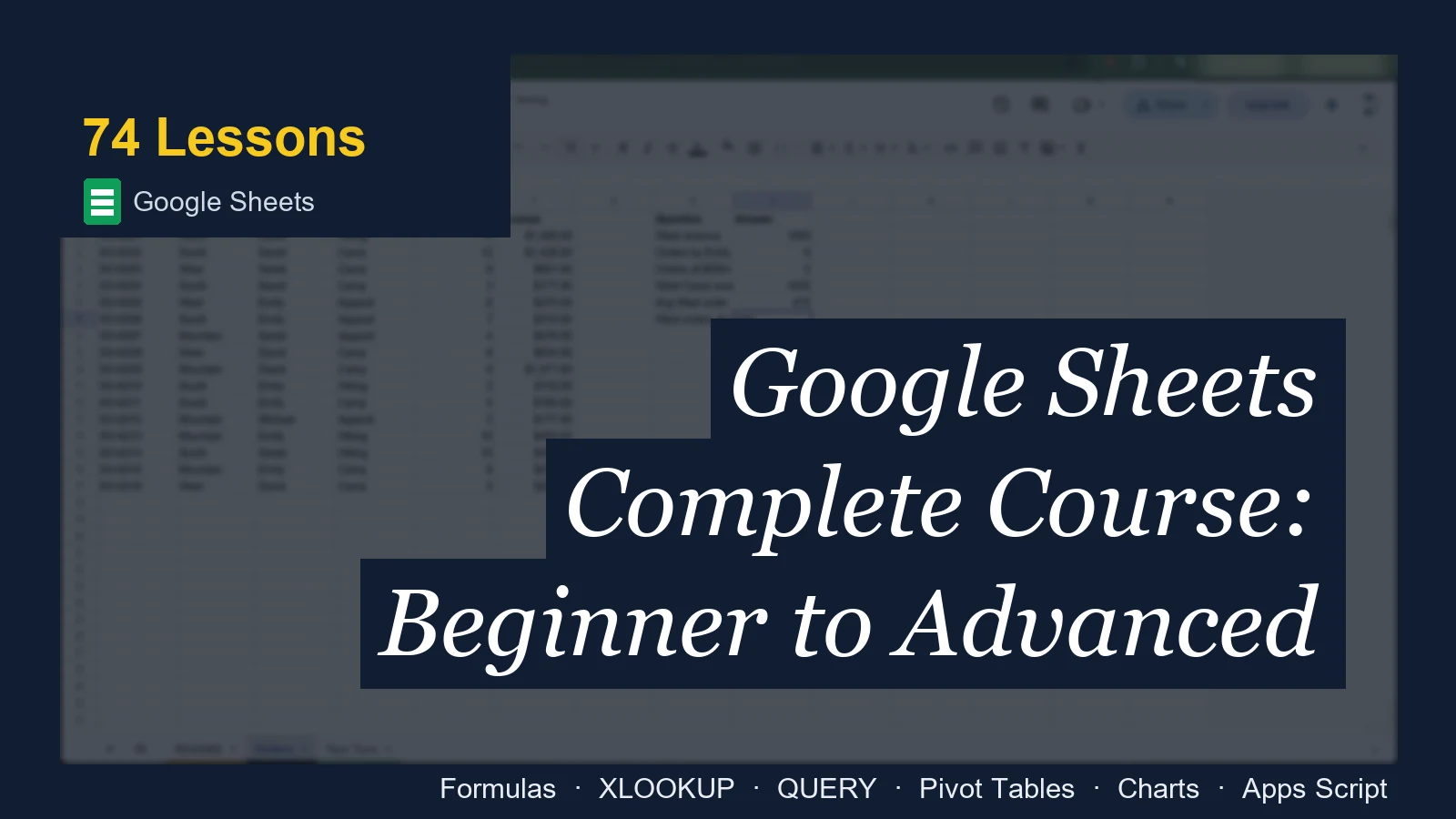
I built my Google Sheets course around exactly this learning path. It has 13 modules and 74 short video lessons, about four hours in total, and every lesson has its own practice file:
- Modules 1-2: getting started, the interface, import and export, smart data entry, formats, tables and data cleanup.
- Modules 3-5: formulas and references, SUMIFS, COUNTIFS and financial functions, logic and lookups (VLOOKUP, XLOOKUP, INDEX and MATCH), text, REGEX and date functions.
- Modules 6-7: sort, filter views, slicers, dropdowns, conditional formatting and smart chips, then FILTER, SORT, UNIQUE, ARRAYFORMULA, QUERY (basics and advanced), LET and LAMBDA.
- Modules 8-10: pivot tables and Explore, charts, sparklines and scorecards, and live data with IMPORTRANGE, IMPORTHTML, GOOGLEFINANCE, IMAGE and Google Forms.
- Modules 11-12: sharing, protection, version history and PDF printing, then macros, Apps Script, sending emails from Sheets and AI-written scripts.
- Module 13: a capstone project, an interactive sales dashboard with KPI cards, charts and dropdown filters.
Modules 1-12 each end with a hands-on challenge and its solution.
NextGenTemplates Academy course
Google Sheets Complete Course: Beginner to Advanced
13 modules · 74 video lessons (about 4 hours) · a practice file for every lesson, with Excel copies for offline use · formulas, lookups, QUERY and dynamic arrays · pivot tables, charts and live data · sharing, protection and Apps Script automation · module challenges with solutions · capstone sales dashboard.
Price: ₹2,499 in India (regular ₹3,999) · $59 internationally (regular $79). One-time payment, no subscription. All you need is a free Google account and a web browser.
The Learning paths page shows how the Academy courses fit together, and if you are not sure where to start, try the free Test your skills page.
Frequently asked questions
How long does it take to learn Google Sheets?
You can learn the basics in a week. To be confident with formulas, lookups, QUERY, pivot tables and charts, plan on eight to ten weeks at about an hour a day, with a practice file for every topic.
Is Google Sheets hard to learn?
No. The basics are easy, and the harder parts like dynamic arrays and QUERY become simple once you understand formulas and references. Learning in the right order is what makes it feel easy.
Can I learn Google Sheets for free?
Yes. Google Sheets itself is free with a Google account, and there are many free tutorials. A structured course helps when you want a clear order, practice files and challenges instead of piecing videos together.
Is Google Sheets the same as Excel?
The core ideas are the same: cells, references, SUMIFS, lookups, pivot tables and charts. Google Sheets adds functions like QUERY, IMPORTRANGE and GOOGLEFINANCE, real-time collaboration and Apps Script, so Excel users still have a few new things to learn.
What should I learn first in Google Sheets?
Start with data entry, formatting and formulas with relative and absolute references. Then learn SUMIFS, IF and lookups before moving on to FILTER, ARRAYFORMULA and QUERY.