
Google Sheets vs Excel: which one should you learn? If your company or the job you want runs on Microsoft 365, learn Excel first. If your team works in Google Workspace, you have no Excel licence, or you mostly build shared trackers with other people, learn Google Sheets first. The good news is that the core skills are the same in both. SUMIFS, XLOOKUP, IF, FILTER and pivot tables work in very similar ways, so whichever you learn first makes the second one much faster.
That is the short answer. Below I compare the two tools honestly, show you exactly which skills carry over and which do not, and give you a five-question test to decide which to learn first. I have built reports and dashboards in both tools for more than 20 years, so this is the same advice I give my own clients and students in India and abroad.
Google Sheets vs Excel at a glance
Save this cheat sheet. It sums up the whole post on one page.
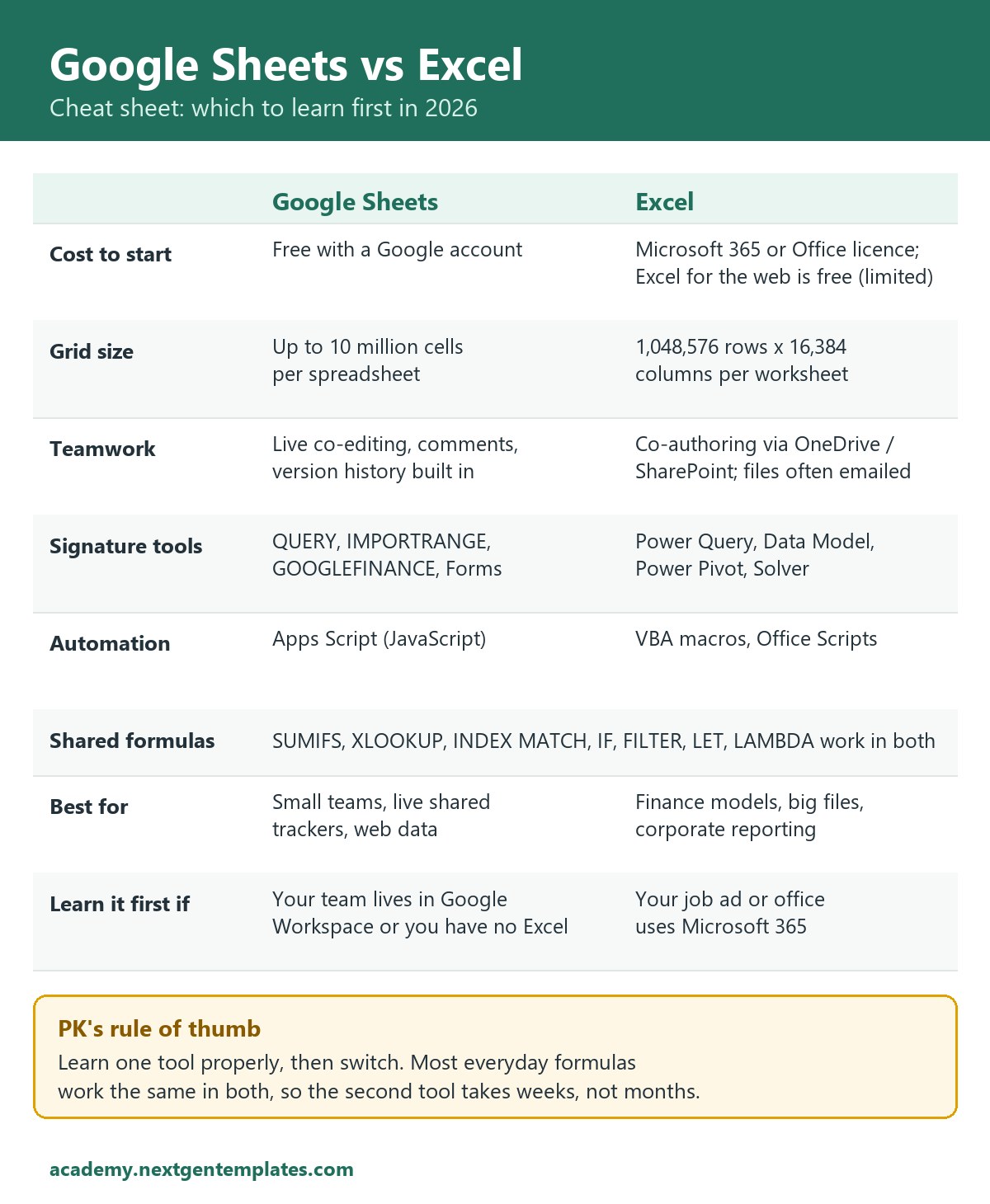
| Google Sheets | Excel | |
|---|---|---|
| Cost to start | Free with a Google account | Desktop Excel needs Microsoft 365 or an Office licence; Excel for the web is free with fewer features |
| Where it runs | In the browser (offline mode needs setting up) | Windows and Mac desktop apps, plus web and mobile |
| Grid size | Up to 10 million cells per spreadsheet | 1,048,576 rows x 16,384 columns on every worksheet |
| Teamwork | Live co-editing, comments, assignments and version history by default | Co-authoring works through OneDrive or SharePoint; many teams still email files |
| Signature tools | QUERY, IMPORTRANGE, GOOGLEFINANCE, Google Forms | Power Query, the Data Model, Power Pivot, Solver |
| Automation | Macros and Apps Script (JavaScript) | VBA macros and Office Scripts |
| Built-in AI | Gemini (on Workspace plans that include it) | Copilot (on Microsoft 365 plans that include it) |
| Learn it first if | Your team uses Google Workspace or you have no Excel | Your office or target job uses Microsoft 365 |
Where Google Sheets wins
Google Sheets was built for the browser and for sharing. That shows in everyday work.
- Working together, live. Five people can type in the same sheet at once and see each other’s cursors. There is no “final_v3_PK.xlsx” problem, because there is only one file. Version history lets you go back to any earlier state.
- Free and everywhere. Anyone with a Google account can open your sheet in a browser. That makes it great for small businesses, students, freelancers and teams spread across cities.
- Live data from the web and other sheets. IMPORTRANGE pulls data from another spreadsheet, IMPORTHTML reads a table from a web page and GOOGLEFINANCE brings in market prices. Google Forms responses land straight in a sheet.
- QUERY. One QUERY formula can filter, group, sort and total a table with a SQL-like sentence. There is no single Excel formula that does all of that.
- Simple automation. Apps Script can send emails from a sheet, run on a timer and connect to Gmail, Calendar and Drive.
Where Excel wins
Excel is still the standard in finance, accounting, MIS and most large companies. It is stronger when the work gets heavy.
- Bigger and faster files. Each worksheet holds over a million rows, and the Data Model can hold far more. Large Google Sheets files get slow well before the 10 million cell limit.
- Power Query. Cleaning and combining messy exports with recorded, repeatable steps is Excel’s superpower. Google Sheets has no built-in equivalent.
- Pivot tables and the Data Model. Excel pivot tables can connect several tables, use DAX measures and feed full dashboards with slicers and timelines.
- Financial modelling. What-if analysis, Goal Seek, Solver, data tables and decades of templates make Excel the default for budgets and forecasts.
- Jobs. Most job ads for analyst, accountant and MIS roles still ask for Excel by name, and many companies test it in interviews.
The skills that carry over (and the ones that do not)
This is the part most comparisons skip, and it is the part that matters for learners. You are not choosing between two different worlds. You are choosing which door to walk through first.
Carries over almost unchanged: cell references (relative, absolute and mixed), SUM, AVERAGE, COUNTIFS, SUMIFS, IF, IFS, IFERROR, VLOOKUP, XLOOKUP, INDEX and MATCH, text functions, date functions, FILTER, SORT, UNIQUE, LET and LAMBDA, data validation dropdowns, conditional formatting, pivot tables and charts. If you learn these in one tool, you can use them in the other on day one. For example, my free XLOOKUP guide on PK: An Excel Expert is written for Excel, but the same syntax works in Google Sheets.
Tool-specific, learn when you need them:
- Google Sheets only: QUERY, ARRAYFORMULA, IMPORTRANGE, IMPORTHTML, GOOGLEFINANCE, smart chips, Apps Script.
- Excel only: Power Query, Power Pivot and DAX, VBA, Office Scripts, GROUPBY and PIVOTBY, Solver. If you want a taste of Power Query, try my free tutorial on merging two tables in Power Query without VLOOKUP.
In practice, most people end up using both. A sales team collects orders in a shared Google Sheet, and the finance team pulls a monthly export into Excel for the board report. Knowing both makes you the person who can sit in the middle.
Which should you learn first? A 5-question test
Answer these honestly. Count your Excel and Sheets answers.
- What does your office (or the job you want) use? Microsoft 365 = Excel. Google Workspace = Sheets. Not sure? Check five job ads for your target role and count which tool they name.
- Do you have Excel on your computer? No, and you do not want to pay yet = Sheets. Yes = Excel.
- Is your work mostly shared trackers that several people update? Yes = Sheets. Mostly your own analysis and reports = Excel.
- How big are your files? A few thousand rows = either. Hundreds of thousands of rows or many monthly exports = Excel.
- Are you heading towards finance, accounts, MIS or Power BI? Yes = Excel, because Power Query and pivot tables lead straight into Power BI. Heading towards operations, startups or teaching = Sheets is a fine start.
Three or more Excel answers: start with Excel. Three or more Sheets answers: start with Google Sheets. A tie: start with whatever you can open today and practise daily. The habit matters more than the tool.
How long does it take to switch?
If you already know one tool well, the second one takes a few weeks of regular use, not months. Excel users moving to Sheets usually need time for three things: where menus and settings live, how sharing and permissions work, and the Sheets-only functions such as QUERY and ARRAYFORMULA. Sheets users moving to Excel mostly need Power Query, larger pivot tables and keyboard-heavy desktop habits.
That is why the first lesson block of my Google Sheets course covers the interface and Excel compatibility (Module 1, lesson 1.5 “Import, export & Excel compatibility”), and why the QUERY function gets two full lessons (Module 7, lessons 7.4 and 7.5). Those are exactly the places where Excel users get stuck.
How to learn Google Sheets the structured way
If the test pointed you to Google Sheets, or you are an Excel user who now has to work in Sheets, this is the order I recommend, and it is the order of the Google Sheets Complete Course:
- Interface, data entry and formatting (Modules 1-2)
- Formulas, references, logical and lookup functions (Modules 3-4)
- Text, date, sorting, filtering and validation (Modules 5-6)
- Dynamic arrays and QUERY (Module 7)
- Pivot tables, charts and live data (Modules 8-10)
- Sharing, protection, macros and Apps Script (Modules 11-12)
- Capstone: an interactive sales dashboard with KPI cards, charts and dropdown filters (Module 13)
For a longer week-by-week plan, read my step-by-step learning path for Google Sheets. If you are weighing Excel against a BI tool instead, see Excel vs Power BI: which to learn first.
NextGenTemplates Academy course
Google Sheets Complete Course: Beginner to Advanced
13 modules · 74 video lessons (4h 00m) · 14 downloadable practice workbooks (Excel copies included for offline use) · a challenge and solution at the end of every module · capstone: an interactive sales dashboard · certificate of completion · lifetime access.
Price: ₹2,499 in India (regular ₹3,999) · $59 internationally (regular $79). One-time payment, no subscription. All you need is a free Google account and a web browser.
Did the test point you to Excel instead? Start with Excel + AI Mastery: 100 Essential Formulas and Real-World Projects (10 modules, 75 lessons), or browse all Academy learning paths.
Frequently asked questions
Is Google Sheets as good as Excel?
For everyday formulas, shared trackers and small to medium data, yes. For very large files, Power Query data cleaning, Data Model pivot tables and heavy financial models, Excel is stronger.
What is the difference between Excel and Google Sheets?
Google Sheets is a free, browser-based spreadsheet built for live collaboration. Excel is a desktop-first spreadsheet with more power for large data, data cleaning and modelling. Most core formulas work the same way in both.
Should I learn Excel or Google Sheets first?
Learn the one your office or target job uses. If you are unsure, check job ads for your role. Excel is the safer first choice for finance, accounts and analyst jobs; Google Sheets is a good first choice if you have no Excel licence or your team uses Google Workspace.
Can I use Excel files in Google Sheets?
Yes. Google Sheets opens and saves .xlsx files, and you can download any sheet as an Excel file. Formulas and formatting usually carry over, but Excel-only features such as VBA macros, Power Query and Power Pivot do not.
Do employers prefer Excel or Google Sheets?
Most job ads for analyst, accountant and MIS roles name Excel. Startups and remote-first teams often use Google Sheets. Knowing both, and saying so on your resume, is the strongest position.