
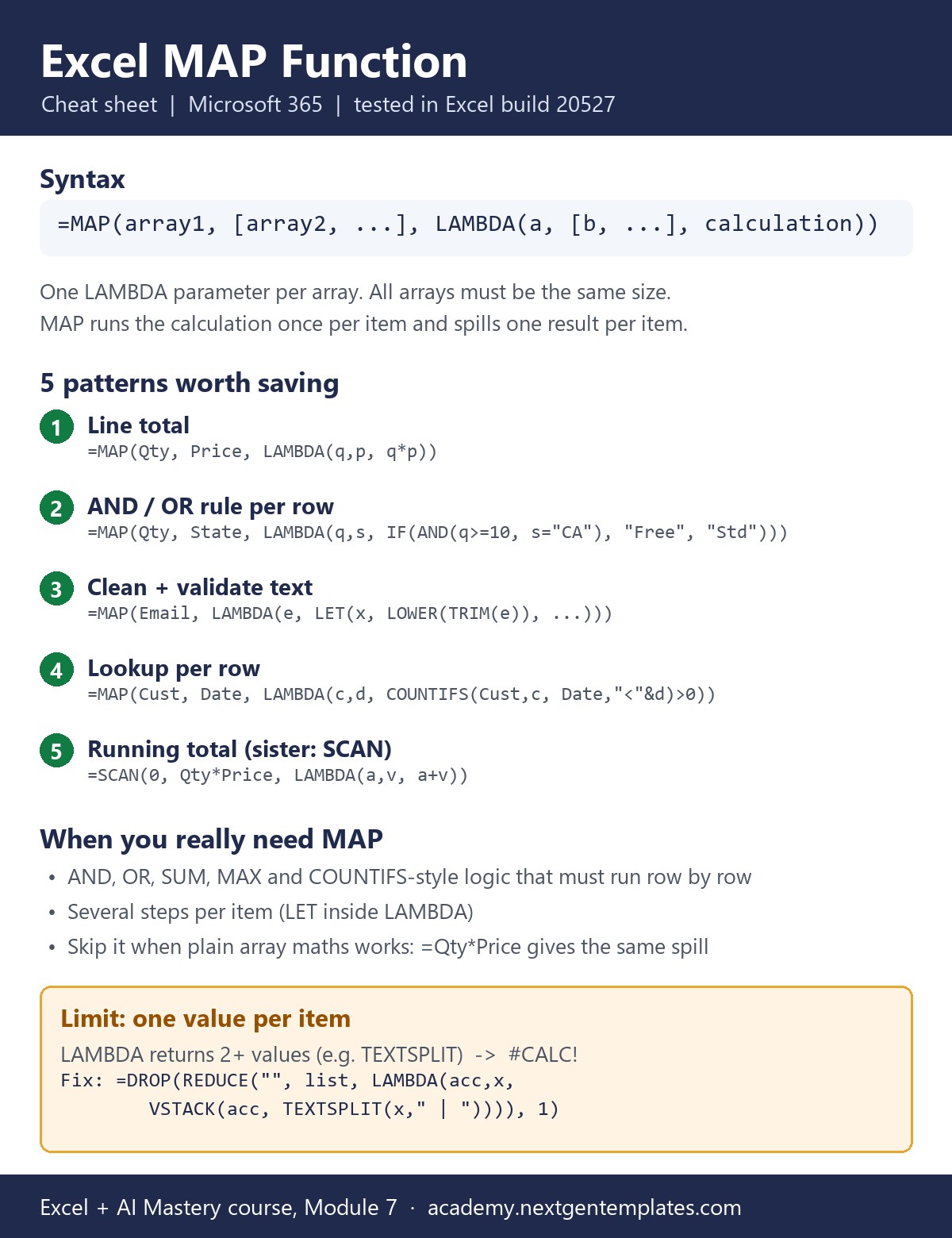
The Excel MAP function runs a small LAMBDA calculation on every item in a list and spills one answer per item, all from a single cell. Use it when a formula has to work row by row and plain array maths cannot do it, for example an AND or OR rule for each order. The syntax is =MAP(array1, [array2, ...], LAMBDA(a, [b, ...], calculation)). MAP needs Microsoft 365 or Excel 2024. Excel 2021 and older show #NAME?.
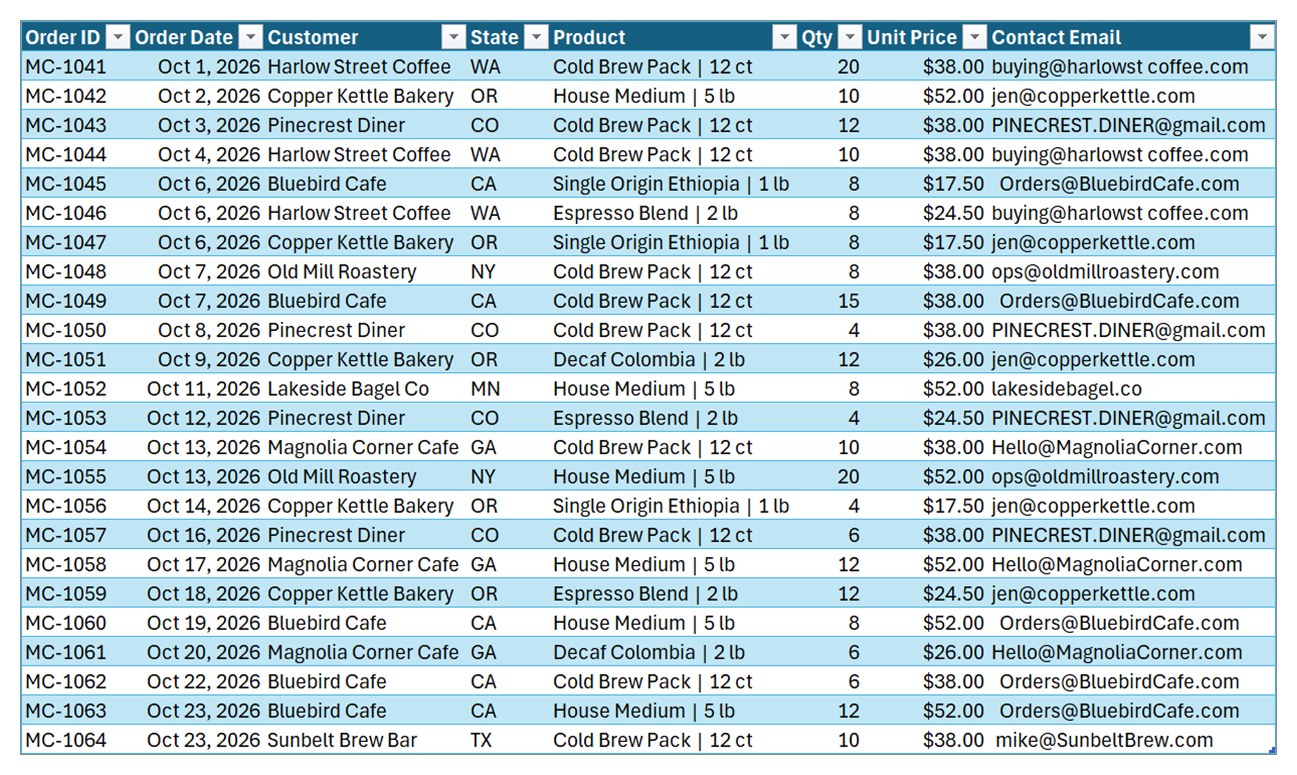
This tutorial comes from Module 7 of my Excel + AI Mastery: 100 Essential Formulas course, the lesson “LAMBDA helpers: MAP, BYROW, BYCOL, SCAN, REDUCE”. Here I use new sample data from a made-up US coffee wholesaler, Maple Creek Coffee Roasters, with 24 orders. I built and tested every formula below in Microsoft 365 Excel for Windows (build 20527, November 2026), so the results you see are real.
⬇️ Download the Free Practice File (ZIP)
Practice + solution workbooks · no sign-up · Microsoft 365 Excel
How the Excel MAP function works
MAP takes one or more ranges of the same size. It hands the items of each range, one position at a time, to a LAMBDA. The LAMBDA needs one name per range: two ranges means two names, such as q and p. Whatever the LAMBDA returns for that position becomes one cell of the result, and the result spills down the sheet.
| Part | What it does | In the examples |
|---|---|---|
| array1, array2 … | The lists to walk through, all the same size | tblOrders[Qty], tblOrders[State] |
| LAMBDA names | One name for each array, in the same order | q for Qty, s for State |
| calculation | The formula for one item, returning one value | IF(AND(q>=10, …), “Free”, “Standard”) |
| Result | A spilled array, one answer per item | 24 answers from one cell |
Two rules matter. Your formula cannot spill inside an Excel Table, so put it on a normal range (the practice file uses a separate sheet). And the LAMBDA must return a single value per item. We will break that rule on purpose later.
Example 1: Line totals (and when you do not need MAP)
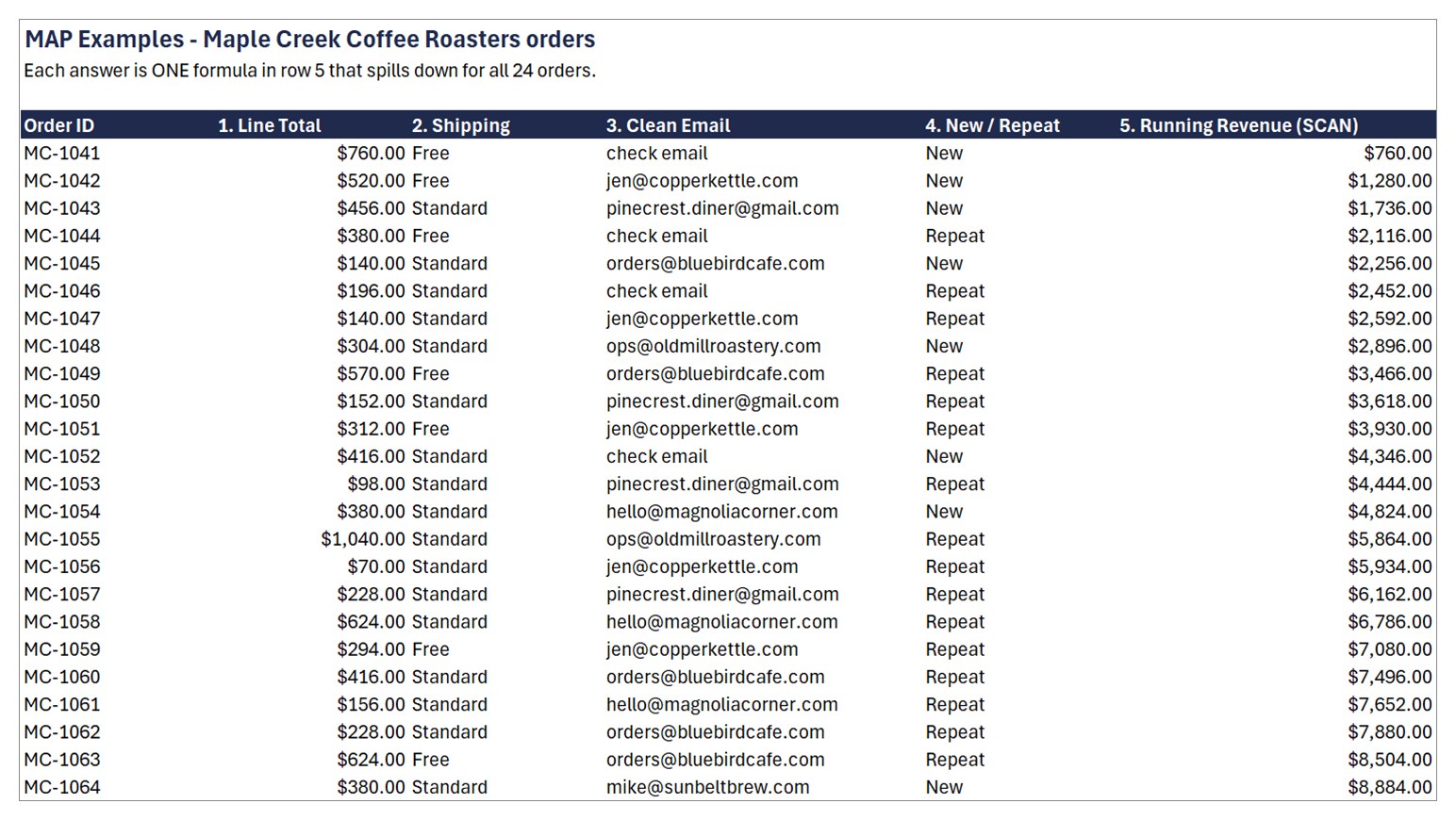
In MAP Examples!B5 type:
=MAP(tblOrders[Qty],tblOrders[Unit Price],LAMBDA(q,p,q*p))
It spills 24 line totals. Order MC-1041 is 20 Cold Brew Packs at $38.00, so the first answer is $760.00.
Now an honest point. =tblOrders[Qty]*tblOrders[Unit Price] gives exactly the same 24 numbers. I checked all 24 rows side by side. Multiplication already works item by item on arrays, so MAP adds nothing here. Learn MAP on this simple case, then use it where it earns its place, which is the next example.
Example 2: An AND / OR rule for every row
Maple Creek gives free shipping when an order has 10 or more units and ships to the West Coast (CA, OR or WA). The natural formula does not work:
=IF(AND(tblOrders[Qty]>=10,OR(tblOrders[State]="CA",tblOrders[State]="OR",tblOrders[State]="WA")),"Free","Standard")
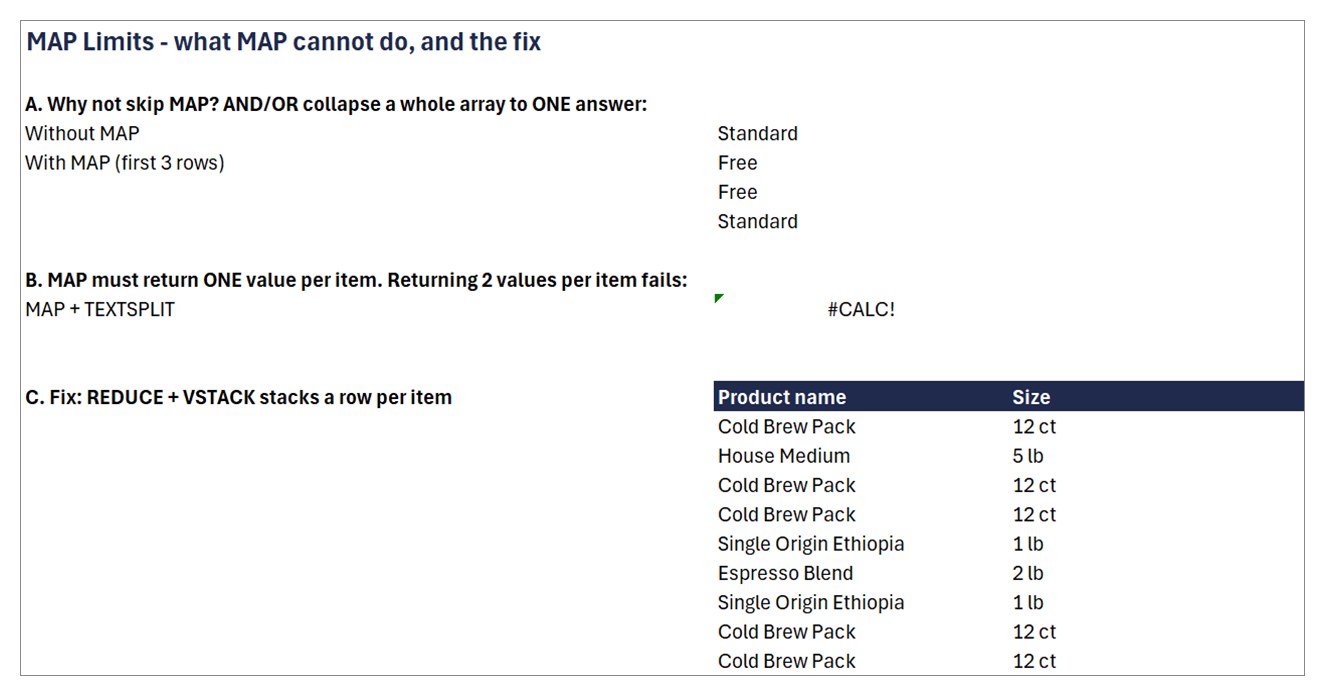
In my test this returned one single word, Standard, not 24 answers. AND and OR squash the whole array into one TRUE or FALSE. Because at least one order fails the test, the answer is FALSE for everyone. MAP fixes it by running the rule once per order:
=MAP(tblOrders[Qty],tblOrders[State],LAMBDA(q,s,IF(AND(q>=10,OR(s="CA",s="OR",s="WA")),"Free","Standard")))
Now MC-1041 (WA, 20 units) is Free, MC-1043 (CO, 12 units) is Standard and MC-1049 (CA, 15 units) is Free. The same applies to SUM, MAX, MIN and any other function that collapses a range to one number. Inside MAP they work on one row at a time.
Example 3: Clean and check messy text
The Contact Email column has stray spaces, capital letters, an address with no @ and one with a space in the middle. In D5:
=MAP(tblOrders[Contact Email],LAMBDA(e,LET(x,LOWER(TRIM(e)),IF(AND(ISNUMBER(SEARCH("@",x)),NOT(ISNUMBER(SEARCH(" ",x)))),x,"check email"))))
LET gives the cleaned text a name, x, so you clean it once and test it twice. “[email protected]” becomes [email protected]. “lakesidebagel.co” and “buying@harlowst coffee.com” are flagged with check email. My first version only looked for the @, and it let the address with a space slip through. That is why the test sits next to the result. Check a few rows by eye before you trust any formula, including one an AI wrote for you.
Example 4: New or repeat customer
MAP can walk two lists at once and look back at the whole table for each row. In E5:
=MAP(tblOrders[Customer],tblOrders[Order Date],LAMBDA(c,d,IF(COUNTIFS(tblOrders[Customer],c,tblOrders[Order Date],"<"&d)>0,"Repeat","New")))
For each order, COUNTIFS counts earlier orders from the same customer. Bluebird Cafe’s first order on Oct 6 is New, and every Bluebird order after that is Repeat. That gives you a quick retention check for a sales report.
Example 5: Running revenue with SCAN, MAP’s sister
MAP treats each item on its own. When each answer depends on the one before it, as a running total does, use SCAN from the same family. In F5:
=SCAN(0,tblOrders[Qty]*tblOrders[Unit Price],LAMBDA(a,v,a+v))
SCAN starts at 0, adds each line total to the running sum and spills every step. October finishes at $8,884.00 across the 24 orders. In short: MAP for one-row-at-a-time answers, SCAN for running ones, and REDUCE when you want only the final result.
Example 6: The one-value limit and how to get around it
Each Product holds a name and a pack size, such as “Espresso Blend | 2 lb”. Splitting it with MAP looks obvious:
=MAP(tblOrders[Product],LAMBDA(p,TEXTSPLIT(p," | ")))
In my test that returned #CALC!. TEXTSPLIT gives back two values per item, and MAP accepts only one. Excel does not support an array of arrays. The fix is REDUCE with VSTACK, which stacks one row per product:
=DROP(REDUCE("",tblOrders[Product],LAMBDA(acc,p,VSTACK(acc,TEXTSPLIT(p," | ")))),1)
REDUCE starts with an empty text placeholder, adds a two-column row for each product, and DROP removes the placeholder row. The result is a clean 24-row, 2-column spill: Product name and Size. If VSTACK is new to you, my free guide on the VSTACK function with examples explains it.
Excel MAP function cheat sheet
Save this one-pager for the next time you are not sure whether you need MAP, BYROW or SCAN.
| Function | Walks through | Returns | Use it for |
|---|---|---|---|
| MAP | Each item (or matching items of several ranges) | One value per item | Row-by-row rules, cleaning, lookups per row |
| BYROW / BYCOL | Each whole row or column of one range | One value per row or column | Row totals, max per month, checks across columns |
| SCAN | Each item, carrying a running value | Every step of the running value | Running totals and balances |
| REDUCE | Each item, carrying a running value | Only the final value (or a stacked array) | Totals, and building multi-column results |
Practise it, then go further
Open the practice file, start on the Start Here sheet and type each formula into the yellow cells. The solution file has every answer, so you can compare. If LAMBDA itself is new, read my free LAMBDA function in Excel with example first.
In the course, the MAP lesson sits in Module 7, “Power Functions You Still Need”, next to REGEX, AGGREGATE and the loan EMI schedule. Module 6 covers dynamic arrays and spill from the ground up. Module 8 shows how to ask Copilot or another AI assistant for a formula like these and prove it with a test grid before you trust it. If you are unsure where to start, my guide to which Excel formulas to learn first lays out the order, and what counts as advanced Excel shows where LAMBDA helpers fit.
NextGenTemplates Academy course
Excel + AI Mastery: 100 Essential Formulas and Real-World Projects
75 lessons in 9 modules plus a Start Here section · 58 video lessons (11h 47m) · 65 practice workbooks · lookups, dynamic arrays, GROUPBY, REGEX and LAMBDA helpers · AI formula checks with a test grid · real projects and a final business control workbook capstone · certificate of completion · lifetime access.
Price: ₹2,499 in India (regular ₹3,999) · $59 internationally (regular $79). One-time payment, no subscription. Microsoft 365 Excel for Windows recommended; Excel 2021/2024 work for most lessons.
Early-bird code EARLYBIRD20 gives 20% off for the first 20 orders (one use per customer). If the code has already been fully used, checkout will simply not accept it.
You can also browse all Academy learning paths to see what comes next.
Frequently asked questions
What does the MAP function do in Excel?
MAP applies a LAMBDA calculation to each item in one or more ranges and returns one result per item as a spilled array. It lets a single formula do row-by-row work that would otherwise need a helper column filled down.
Which Excel versions have the MAP function?
MAP is available in Microsoft 365 Excel (Windows, Mac and the web) and in Excel 2024. Excel 2021 and older do not have it and show #NAME?. All the examples in this guide were tested in Microsoft 365 for Windows, build 20527.
Why does MAP return #CALC!?
The most common cause is a LAMBDA that returns more than one value per item, for example TEXTSPLIT. MAP accepts one value per item. Use DROP(REDUCE(“”, list, LAMBDA(acc, x, VSTACK(acc, …))), 1) to build a multi-column result instead.
What is the difference between MAP and BYROW?
MAP works item by item and can walk several ranges side by side. BYROW passes a whole row of one range to the LAMBDA, so it suits row totals or checks across columns. Both must return one value each time.
Do I always need MAP for array formulas?
No. Simple maths such as Qty*Price already works on whole arrays. Use MAP when a function collapses an array to one answer, like AND, OR, SUM or MAX, or when you need several steps per item.
Next time a formula has to make a decision for every row, reach for the Excel MAP function before you fill anything down. Happy learning!
Priyendra Kumar (PK), founder of NextGenTemplates and creator of PK: An Excel Expert