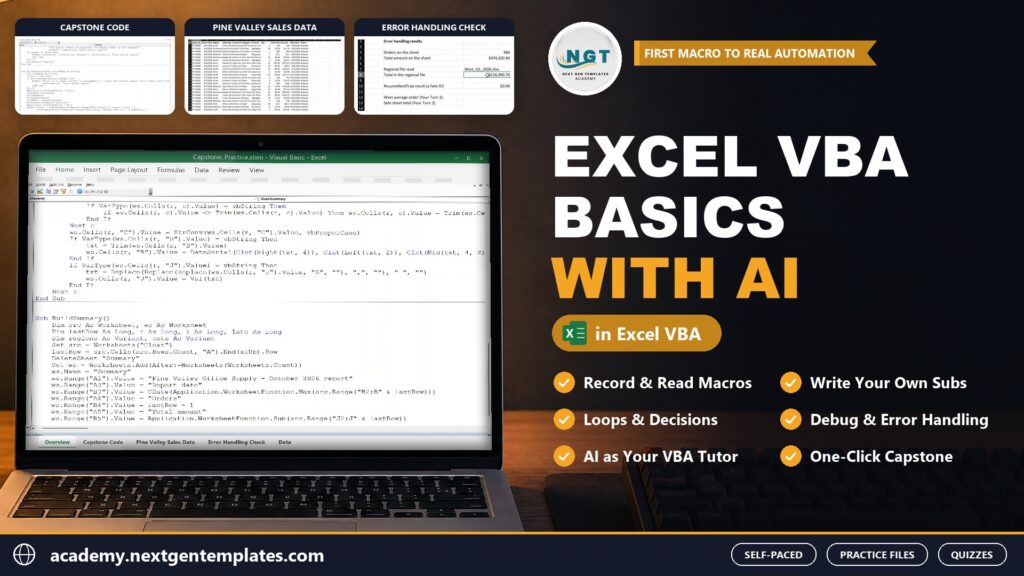
Excel VBA Basics with AI: From Your First Macro to Real Automation
Record, read and write your own Excel macros, and use AI assistants such as Copilot and Claude as your VBA tutor without trusting them blindly. Practice files, an assessment and quiz for every module and a real capstone.
 Created by Priyendra Kumar (PK) · NextGenTemplates Academy
What you’ll learn
- Record macros, read the code the recorder writes and clean it up into short, fast code
- Write your own Subs in the VBA editor and step through them with F8
- Point at any cell, range, sheet or workbook from VBA and find the last row the right way
- Use variables, data types, If and Select Case to make your macros think
- Process hundreds of rows in seconds with For, For Each and Do loops
- Build friendly tools with buttons, MsgBox and InputBox that check what the user types
- Create, split, copy and save sheets and workbooks automatically
- Find and fix errors with the debugging tools and proper error handling
- Write strong prompts for VBA and test every AI answer before you trust it
- Build a complete monthly report cleaner as your capstone project
A practical route to better work.
A complete beginner VBA course in 11 modules, built around Pine Valley Office Supply, a fictional US business with real-looking sales data. Start with the macro recorder and read the code it writes, then use the VBA editor to write your own Subs, step through code and clean up recorded macros. Point at any cell, range, sheet or workbook, find the last row the right way and write values, formulas and formatting by code. Use variables and data types, make decisions with If and Select Case, and process hundreds of rows with For, For Each and Do loops. Build friendly tools with buttons, MsgBox and InputBox that check what the user types, create, split, copy and save sheets and workbooks automatically, and find and fix errors with F8, the Immediate and Locals windows and proper error handling. Every module ends with an AI Corner: the exact prompt, a real answer from an AI assistant, the mistake AI usually makes on that topic and how to prove it right or wrong in Excel. Module 10 turns AI into your VBA tutor with the C-T-C-T prompt formula, a fair side-by-side test and a personal prompt library. Modules 1-9 each end with a hands-on assessment on a new business, a 10-question quiz and a full solution walkthrough, and the course finishes with a capstone: a monthly report cleaner that turns half a day of manual clean-up into one click.
Inside the course
12 modules · 82 lessonsMODULE 01Start Here+
MODULE 02Module 1: Macros and the Macro Recorder+
MODULE 03Module 2: The VBA Editor and Your First Code+
MODULE 04Module 3: Excel Objects - Workbooks, Sheets and Ranges+
MODULE 05Module 4: Variables, Data Types and Calculations+
MODULE 06Module 5: Making Decisions - If and Select Case+
MODULE 07Module 6: Loops - Repeat Work Automatically+
MODULE 08Module 7: Talking to the User - MsgBox, InputBox and Buttons+
MODULE 09Module 8: Working with Sheets and Workbooks+
MODULE 10Module 9: Debugging and Error Handling+
MODULE 11Module 10: AI as Your VBA Tutor+
MODULE 12Module 11: Capstone - The Monthly Report Cleaner+
Practice files
25 downloadable practice workbooks to follow along with the lessons.
Video lessons
61 step-by-step video lessons (6h 12m), streamed securely.
A practical assignment
Apply your learning, submit your work and explain your approach.
A knowledge check
Test your understanding with clear feedback and explanations.
Certificate of completion
Complete the course to download a certificate of completion with a unique certificate ID.
Is this course for you?
- Analysts, accountants and admin staff who repeat the same Excel steps every week
- Sales and operations teams who build recurring reports by hand
- Excel users who want to understand the code AI writes for them
- Anyone who wants to start automating Excel from zero
Before you start
- Excel for Windows (Microsoft 365, 2021, 2019 or 2016)
- Basic Excel skills: opening files, sheets and simple formulas
- No programming experience needed; a free AI assistant account is helpful for the AI Corners (optional)
About your instructor
Priyendra Kumar (PK)
Founder, NextGenTemplates · Creator of PK: An Excel Expert
A business intelligence consultant, educator and template creator with more than 20 years of real-world experience in Excel, Power BI, Google Sheets, dashboards and business reporting.
PK has shared Excel tutorials on YouTube since 2017. In this course he teaches the same practical way: understand the idea, work through a business example, and build something you can use.
More about PKGood to know
How do I buy a course, and which payment methods can I use?+
Choose a course, select Add to cart and complete checkout. With an Indian billing address you pay in INR through Razorpay, using UPI, cards or net banking. From any other country you pay in USD through PayPal, including debit and credit cards. It is a one-time payment, and the course appears in My Learning as soon as payment is confirmed.
Can I learn at my own pace?+
Yes. Lessons are organized into modules, and signed-in learners can save their progress and resume where they left off.
Are practice files included?+
Yes. Practice files are included with each paid course and can be downloaded from the course once you are enrolled. They are for your personal learning and your own internal work.
Will I receive a certificate?+
Yes. When you complete all required lessons (and any knowledge check or assignment in the course), you can download a certificate of completion with a unique certificate ID. It confirms course completion; it is not an academic or professional accreditation.
How long will I have course access?+
You get lifetime access: you can use the course for as long as NextGenTemplates Academy operates and offers it, as described in the Course Access Policy. There is no subscription or renewal fee.
Can I get a refund?+
Courses are digital content with immediate access, so purchases are generally non-refundable. Limited exceptions are explained in the Refund Policy.
FREE EXCEL LESSONS BY EMAIL
Not ready to enroll yet?
Join the Academy email list for practical Excel and AI tips, free preview lessons and news when a new course opens. Unsubscribe at any time.