
If you are searching for how to learn Excel fast, you are probably in one of three situations: a new job needs Excel from Monday, an interview test is coming up, or you are simply tired of asking a colleague to fix your formulas. I understand all three. The good news is that you do not need to learn all of Excel. You need to learn the right parts, in the right order, on the right kind of practice files.
I have been teaching Excel on YouTube since 2017, and over the years I have noticed a clear pattern. The learners who improve quickly are not the ones who watch the most videos. They are the ones who follow a sequence, practise on realistic business data and check their own work. In this guide I will share that approach as a simple 30-day plan, so you can start today with free material or with a structured course.
How long does it take to learn Excel?
This is the first question most people ask, and the honest answer is: it depends on what “learn Excel” means for your work. Here is how I explain it to learners:
- Basic, job-ready Excel (entering data, tables, sorting, filtering, SUM, IF, simple lookups and a basic chart) usually takes a few weeks of regular practice.
- Confident, analyst-level Excel (XLOOKUP, SUMIFS, dynamic arrays, Pivot Tables, cleaning messy data and building a report) takes a couple of months of steady work.
- Advanced Excel (LAMBDA, the Data Model, DAX measures, automated refresh and full dashboards) is an ongoing skill. Even after many years I still learn new tricks.
Notice that the time depends far more on how you practise than on how many hours you watch. Thirty focused minutes a day with a real workbook will take you further than a weekend of passive video watching.
How to learn Excel fast: 7 rules that actually work
1. Learn in a fixed order
Excel topics depend on each other. Lookups make no sense if your references are wrong, and dynamic arrays are confusing if you do not understand ranges. Start with workbook structure, tables and references, then totals and logic, then lookups, then analysis. Skipping steps feels fast but costs you time later.
2. Focus on the formulas professionals actually use
Excel has more than 500 functions, but day-to-day work uses a much smaller set: SUMIFS, COUNTIFS, IF and IFS, XLOOKUP, INDEX and MATCH, FILTER, SORT, UNIQUE, TEXT and date functions, and a handful of error-handling tools. Master these before you chase rare functions.
3. Practise on realistic business data
Typing ten numbers into A1:A10 teaches you syntax, not Excel. Real work means messy exports, duplicate customers, dates stored as text and missing values. Practise on files that look like what your manager will actually send you.
4. Build small projects, not just exercises
Once you know a group of formulas, use them together: a sales scorecard, an invoice generator, an attendance tracker or a receivables aging report. Projects are where the pieces connect, and they also give you something to show in an interview.
5. Use AI as a tutor, but verify every answer
Copilot and ChatGPT can write and explain formulas in seconds, which is a big help when you are learning. But AI can also give you a formula that looks right and returns the wrong total. Ask the AI to explain its formula, then test it against a few rows you can check by hand. This habit alone will make you faster and more trusted at work.
6. Keep sessions short and daily
Thirty to forty-five minutes a day, five days a week, beats one long session on Sunday. Short daily practice keeps the shortcuts and formula patterns fresh in your memory.
7. Test yourself regularly
At the end of each week, close the tutorial and solve a problem on your own. If you get stuck, that is exactly the topic to revise. A quick self-check such as the free Test your skills quiz is a good way to find your gaps.
A 30-day Excel roadmap you can follow
Here is the plan I would give a friend who needs to get good at Excel quickly. Adjust the pace to your schedule, but keep the order.
Week 1: Foundations
Workbook structure, Excel Tables, relative and absolute references, and calculation order. Then totals, counts, rounding, dates, IF and nested conditions, and error handling with IFERROR. By the end of the week you should be able to build a small, clean calculation sheet without help.
Week 2: Clean data and lookups
Text cleanup with TRIM, TEXTBEFORE, TEXTAFTER and friends, then exact lookups with XLOOKUP and INDEX/MATCH. Practise reconciling two lists, for example matching customer records from two different exports. This is one of the most common real-world tasks.
Week 3: Analysis and dynamic arrays
SUMIFS and COUNTIFS for conditional totals, date-period metrics, ranking, and then dynamic arrays: FILTER, SORT, UNIQUE and, in Microsoft 365, GROUPBY and PIVOTBY. Build one live report that updates when the data changes.
Week 4: Projects and AI workflows
Combine everything into two or three small projects: a monthly sales scorecard, an inventory reorder sheet or a payroll calculation. Then practise the prompt-to-formula workflow: ask an AI assistant for a formula, build a small test grid and prove the answer before you use it. Finish the month by documenting one workbook so someone else could use it.
If you want to go further after this month, Pivot Tables and dashboards are the natural next step. I have written a separate guide on how to learn Pivot Tables in Excel from zero to dashboards.
The best way to learn Excel formulas (and where AI fits)
The best way to learn Excel formulas is a simple loop: understand the idea, try it on a practice file, check the result, then use it in a project. Every formula you learn should end inside something useful, such as an invoice, a tracker or a report.
AI fits into the “try it” and “check it” parts. It is excellent for explaining an inherited formula you do not understand, or suggesting a starting point. It is not a replacement for knowing the formula yourself, because you are the one who has to spot when the answer is wrong. That is why I teach AI as a verification workflow, not as a shortcut.
Free route or course route?
You can absolutely learn Excel with free material, and I have made a lot of it. On my free blog you can follow the free Excel course from beginner to advanced, and the free Excel Formulas with AI course covers using Copilot and ChatGPT for formulas. If you are disciplined and enjoy building your own plan, start there.
A paid course makes sense when you want the order decided for you, practice files that check your answers, assessments at the end of each module and a final project to prove your skills. That is exactly why I built the NextGenTemplates Academy courses.
NextGenTemplates Academy course
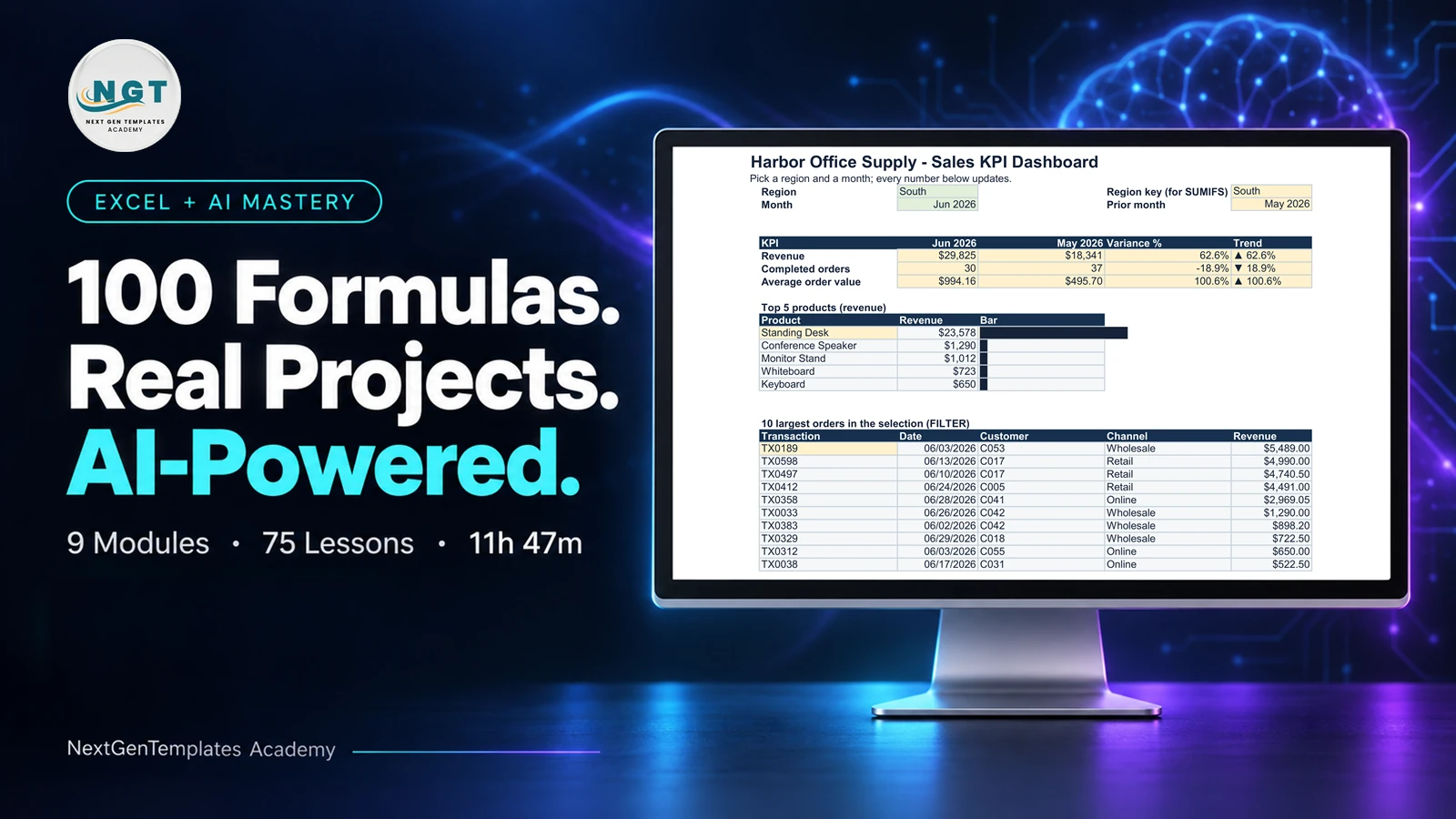
Excel + AI Mastery: 100 Essential Formulas and Real-World Projects
10 modules · 75 lessons · 58 video lessons (11h 47m) · 65 practice workbooks with self-marking Checks sheets · module quizzes and assessments · final capstone: a business control workbook · certificate of completion · lifetime access.
Price: ₹2,499 in India (regular ₹3,999) · $59 internationally (regular $79). One-time payment, no subscription. No paid AI subscription is needed for the course.
Early-bird code EARLYBIRD20 gives 20% off for the first 20 orders (one use per customer). If the code has already been fully used, checkout will simply not accept it.
The course follows the same order as the roadmap above. Modules 1 to 4 cover formula foundations, text cleanup, lookups, dynamic arrays, analysis, auditing and four real projects. Modules 5 to 7 are masterclasses on lookups, dynamic arrays and the power functions you still need, including REGEX and LAMBDA. Module 8 is the Excel + AI workflow, and Module 9 applies everything to nine real-world use cases such as a receivables aging report, a Gantt chart and a formula-only KPI dashboard.
Not sure which course fits you? See the Academy learning paths or browse all courses, including Excel Pivot Tables & Dashboards: Basic to Advanced (16 modules, 132 lessons) for the reporting side.
Frequently asked questions
What is the fastest way to learn Excel?
Follow a fixed order (foundations, logic, lookups, analysis, projects), practise 30 to 45 minutes a day on realistic business files, and finish each week by solving a problem without a tutorial.
How long does it take to learn Excel?
Basic job-ready Excel usually takes a few weeks of regular practice. Confident analyst-level skills, including lookups, dynamic arrays and Pivot Tables, take a couple of months of steady work.
Which Excel formulas should I learn first?
Start with SUM, IF, COUNTIFS and SUMIFS, then XLOOKUP or INDEX/MATCH, then FILTER, SORT and UNIQUE. Add text and date functions as you meet messy data.
Can I learn Excel with ChatGPT or Copilot?
AI is a useful tutor for explaining and suggesting formulas, but you should always test its answer on rows you can check by hand. Learn the formula yourself so you can tell when the AI is wrong.
Which Excel version do I need for the Excel + AI Mastery course?
Microsoft 365 Excel for Windows is recommended. Excel 2021 and 2024 work for most lessons, and no paid AI subscription is required because AI steps are optional and every result is verified by hand.
Whichever route you choose, keep the order, practise on real files and build something useful at the end of every week. That is how to learn Excel fast without the frustration. Happy learning!
Priyendra Kumar (PK), founder of NextGenTemplates and creator of PK: An Excel Expert